Translate

Total Pageviews

My YouTube Channel

Saturday, 16 November 2013

vSphere handling of LUNs detected as snapshot LUNs (1011387)

Symptoms

  • A datastore is missing, though you can still see the LUN presented to the host. 
  • When forcing a LUN that is formatted as VMFS-5 to mount (either with the name or UUID), you may see errors similar to:

    # esxcli storage vmfs snapshot mount -l DEV-LUN03
    No unresolved VMFS snapshots with volume label 'DEV-LUN03' found.


    # esxcli storage vmfs snapshot mount -u 4f1d6367-34a3d2d2-f46b-14feb5cc149a
    No unresolved VMFS snapshots with volume UUID '4f1d6367-34a3d2d2-f46b-14feb5cc149a' found.

  • In the vmkernel or messages log , you see messages similar to:

    LVM: 8445: Device naa.0012345012345678:1 detected to be a snapshot:

    LVM: 8445: Device eui.0017380012020364:1 detected to be a snapshot:
    LVM: 8452: queried disk ID: <type 1, len 17, lun 36, devType 0, scsi 0, h(id) 7683208289187576905>
    LVM: 8459: on-disk disk ID: <type 1, len 17, lun 17, devType 0, scsi 0, h(id) 7683208289187576905>
  • When force mounting a VMFS datastore, you may experience these symptoms:

    • Other hosts in the same datacenter cannot mount that VMFS datastore from vCenter Server.
    • The Resolve VMFS Volumes automatic task, seen in the task list of the vCenter Client, generates the error:

      Error: Cannot change the host configuration.
      Error Stack
      Call "HostStorageSystem.ResolveMultipleUnresolvedVmfsVolumes" for object "storageVolume" on vCenter Server "MyVC" failed.

      Note: Where storageVolume is the name of the datastore and MyVC is the name of your vCenter Server.

Purpose

This article provides information on how snapshot LUN detection is handled by ESXi/ESX 4.x and ESXi 5.x.

Cause

As of ESXi/ESX 4.0, it is no longer necessary to handle snapshot LUNs via the CLI. Resignature and Force-Mount operations have full GUI support and vCenter Server does VMFS rescans on all hosts after a resignature operation.

The snapshot LUNs issue is caused when the ESXi/ESX host cannot confirm the identity of the LUN with what it expects to see in the VMFS metadata. This can be caused by replaced SAN hardware, firmware upgrades, SAN replication, DR tests, and some HBA firmware upgrades. Some ESXi/ESX host upgrades from 3.5 to 4.x (due to the change in naming convention from mpx to naa) have also been known to cause this. However, this is a rare occurrence. For more/related information, see Managing Duplicate VMFS Datastores in the ESX Configuration Guide for ESXi/ESX 4.x and in the vSphere Storage Guide for ESXi 5.x.

Force mounting a VMFS datastore may fail if:
  1. Multiple ESXi/ESX 4.x and 5.0 hosts are managed by the same vCenter Server and these hosts are in the same datacenter.
  2. A snapshot LUN containing a VMFS datastore is presented to all these ESXi/ESX hosts.
  3. One of these ESXi/ESX hosts has force mounted the VMFS datastore that resides on this snapshot LUN.
  4. A second ESXi/ESX host is attempting to do an operation at the same time.
When one ESXi/ESX host force mounts a VMFS datastore residing on a LUN which has been detected as a snapshot, an object is added to the datacenter grouping in the vCenter Server database to represent that datastore.

When a second ESXi/ESX host attempts to do the same operation on the same VMFS datastore, the operation fails because an object already exists within the same datacenter grouping in the vCenter Server database.

Since an object already exists, vCenter Server does not allow mounting the datastore on any other ESXi/ESX host residing in that same datacenter.

Resolution

For more information on how snapshot LUNs were handled in earlier releases, see:

As of ESXi/ESX 4.0, it is no longer necessary to handle snapshot LUNs via the CLI. Resignature and Force-Mount operations have full GUI support and vCenter Server does VMFS rescans on all hosts after a resignature operation.

There are three methods used to mount the VMFS volume on an ESXi/ESX host:

ESXi 5.x

vSphere Client
  1. Log into the vSphere Client and select the server from the inventory panel.
  2. In the Configuration tab's Hardware panel, click Storage. 
  3. Click Add Storage.
  4. Select the Disk/LUN storage type.
  5. Click Next.
  6. From the list of LUNs, select the LUN that has a datastore name displayed in the VMFS Label column.

    Note: The name present in the VMFS Label column indicates that the LUN is a copy that contains a copy of an existing VMFS datastore.
  7. Click Next.
  8. Under Mount Options, these options are displayed:

    • Keep Existing Signature: Persistently mount the LUN (for example, mount LUN across reboots)
    • Assign a New Signature: Resignature the LUN
    • Format the disk: Reformat the LUN

      Notes:
      • The Format the disk option deletes any existing data on the LUN.
      • Before attempting to resignature, make sure that there are no virtual machines running off that VMFS volume on any other host, as those virtual machines may become invalid in the vCenter Server inventory and will have to be registered again on their respective hosts.
  9. Select the desired option for your volume.
  10. In the Ready to Complete page, review the datastore configuration information.
  11. Click Finish.

vSphere Web Client

  1. Log into the vSphere Web Client and navigate to vCenter Home.
  2. Click Datastores in the menu on the left.
  3. In the Objects tab click the Create a new datastore icon in the top left.
  4. Type the datastore name and if required, select the placement location for the datastore.
  5. Select VMFS as the datastore type.
  6. From the list of storage devices, select the device that has a specific value displayed in the Snapshot Volume column.
    The value present in the Snapshot Volume column indicates that the device is a copy that contains a copy of an existing VMFS datastore.
  7. Under Mount Options, select the desired option (Keep existing, Assign new, Format) for your volume. and click Next.
  8. Review the datastore configuration information.
  9. Click Finish.

Command line

The esxcli command is used on the command line.
  • To list the volumes detected as snapshots, run this command:

    # esxcli storage vmfs snapshot list

    The output appears similar to:

    49d22e2e-996a0dea-b555-001f2960aed8
       Volume Name: VMFS_1
       VMFS UUID: 4e26f26a-9fe2664c-c9c7-000c2988e4dd
       Can mount: true
       Reason for un-mountability:
       Can resignature: true
       Reason for non-resignaturability:
       Unresolved Extent Count: 1

  • To mount a snapshot/replica LUN that is persistent across reboots, run this command:

    # esxcli storage vmfs snapshot mount -l label|-u uuid

    For example:

    # esxcli storage vmfs snapshot mount -l "VMFS_1"
    # esxcli storage vmfs snapshot mount -u "49d22e2e-996a0dea-b555-001f2960aed8"
  • To mount a snapshot/replica LUN that is not persistent across reboots, run this command:

    # esxcli storage vmfs snapshot mount -n -l label|-u uuid

    For example:

    # esxcli storage vmfs snapshot mount -n -l "VMFS_1"
    # esxcli storage vmfs snapshot mount -n -u "49d22e2e-996a0dea-b555-001f2960aed8"

  • To resignature a snapshot/replica LUN, run this command:

    # esxcli storage vmfs snapshot resignature -l label|-u uuid

    For example:

    # esxcli storage vmfs snapshot resignature -l "VMFS_1"
    # esxcli storage vmfs snapshot resignature -u "49d22e2e-996a0dea-b555-001f2960aed8"

Notes:
To view the datastores again in vCenter Server, you may have to perform a rescan of the storage adapters on all ESXi/ESX hosts that the datastore is presented to or a refresh of the storage view.
If you are having trouble identifying the affected datastore, in the vSphere client, check the storage view of another ESX/ESXi host that still has the datastore mounted correctly. This will then allow you to correlate VMFS datastore name with NAA LUN identifier.

ESXi/ESX 4.x

vSphere Client
  1. Log into the vSphere Client and select the server from the inventory panel.
  2. Click the Configuration tab.
  3. Click Storage in the Hardware panel.
  4. Click Add Storage.
  5. Select the Disk/LUN storage type.
  6. Click Next.
  7. From the list of LUNs, select the LUN that has a datastore name displayed in the VMFS Label column and click Next.

    Note: The name present in the VMFS Label column indicates that the LUN is a copy that contains a copy of an existing VMFS datastore.
  8. Under Mount Options, these options are displayed:

    • Keep Existing Signature: The VMFS Metadata will not change. The volume will be detected as a snapshot after the reboot. All other hosts accessing this device/LUN will continue to see this as a snapshot volume. (To mount it persistently, see theCommand Line section.)
    • Assign a New Signature: Resignature the LUN
    • Format the disk: Reformat the LUN

      Notes:
      • The Format the disk option deletes any existing data on the LUN.
      • Before attempting to resignature, make sure that there are no virtual machines running off that VMFS volume on any other host, as those virtual machines may become invalid in the vCenter Server inventory and will have to be registered again on their respective hosts.
  9. Select the desired option for your volume.
  10. On the Ready to Complete page, review the datastore configuration information.
  11. Click Finish.

Command line

The esxcfg-volume command is used on the command line.
  • To list the volumes that are detected as snapshots/replicas, run this command:

    # esxcfg-volume -l

    The output appears similar to:

    VMFS3 UUID/label: 49d22e2e-996a0dea-b555-001f2960aed8/VMFS_1
    Can mount: Yes
    Can resignature: Yes
    Extent name: naa.60a98000503349394f3450667a744245:1 range: 0 - 97023 (MB)


    In this example, the datastore UUID is 49d22e2e-996a0dea-b555-001f2960aed8 and its last label is VMFS_1.
  • To mount the volume without performing a resignaturing of that volume (this volume is unmounted when the ESX host is rebooted), run this command:

    # esxcfg-volume -m VMFS_UUID|label

    For example:

    # esxcfg-volume -m "VMFS_1"
    # esxcfg-volume -m "49d22e2e-996a0dea-b555-001f2960aed8"

  • To mount the volume without performing a resignaturing of that volume (this volume is mounted when the ESX host is rebooted), run this command:

    # esxcfg-volume -M VMFS_UUID|label

    For example:

    # esxcfg-volume -M "VMFS_1"
    # esxcfg-volume -M "49d22e2e-996a0dea-b555-001f2960aed8"

  • To resignature the volume (the volume is mounted immediately after the resignature), run this command:

    # esxcfg-volume -r VMFS_UUID|label

    For example:

    # esxcfg-volume -r "VMFS_1"
    # esxcfg-volume -r "49d22e2e-996a0dea-b555-001f2960aed8"

Notes:
To view the datastores again in vCenter Server, you may have to perform a rescan of the storage adapters on all ESXi/ESX hosts that the datastore is presented to or a refresh of the storage view.
If you are having trouble identifying the affected datastore, in the vSphere client, check the storage view of another ESX/ESXi host that still has the datastore mounted correctly. This will then allow you to correlate VMFS datastore name with NAA LUN identifier.

ESXi/ESX 3.5

  1. In the VMware Infrastructure Client, select the host in the inventory.
  2. Click the Configuration tab and click Advanced Settings.
  3. Select LVM in the left pane and set LVM.DisallowSnapshotLUN to 0 in the right pane.

    Warning: When LVM.DisallowSnapshotLUN is set to 0, do not present any snapshot LUNs to the ESXi/ESX host because data corruption may result. For more information, see the SAN Configuration Guide for your version for ESXi/ESX.
  4. Rescan all VMFS volumes.

    After the rescan, all VMFS volumes are available.

Additional Information

There are three important notes to keep in mind when force mounting VMFS volumes on ESXi/ESX 4.x and 5.0 hosts:
  • A VMFS datastore can be mounted only if it does not collide with an already mounted VMFS datastore that has the same UUID (that is, VMFS signature). In other words, if the original LUN that contains the original VMFS datastore together with its snapshot LUN are both presented to the ESXi/ESX host simultaneously, force mounting the VMFS datastore from the snapshot LUN on this same ESXi/ESX host is not allowed. In this case, the only way to mount that VMFS datastore from the snapshot LUN is to resignature and choose a new label for that datastore.
  • In a datacenter that has multiple ESXi/ESX hosts, a VMFS datastore on a snapshot LUN can be force mounted on any one of these hosts. When this datastore is mounted on a given host, that datastore cannot be force mounted on any other host using the vCenter Server user interface. To mount that datastore on other hosts, use the steps provided above.
  • If a LUN has been force mounted using the process above you will be unable to unmount the lun. To resolve this issue, file a support request.

For additional information about how a VMFS volume can be detected as a snapshot, see Snapshot LUN detection in ESX 3.x and ESX 4.x (1011385).
Source:-

Friday, 15 November 2013

vSCSIStats

The vscsistats tool provides virtual disk latency statistics for VMFS and NFS datastores. With microsecond precision, it displays data in a histogram form for trend analysis. This precise data collection is superior to means, averages, and standard deviations when you are trying to determine the sequentiality, I/O size, and block distribution of your datastore’s workload.
Use vscsiStats to gather storage performance data
Note: vscsistats is located in the /usr/sbin directory
  1. Determine the world number for your virtual machine:
    From an SSH session run: vscsiStats -lRecord the world ID for the virtual machine you would like to monitor. 
  2. Start the collection process:
    vscsiStats -s -w worldID
  3. This collection process will continue for 30 minutes unless stopped and the statistics are cleared using this command:
    vscsiStats -x -w worldID
  4. To extend the collection process by 30 minutes, rerun this command:
    vscsiStats -s -w worldID 
  5. To only reset the counters to zero while collecting statistics, execute:
    vscsiStats -r 
Display histograms
Histogram data may be outputted as a chart or a comma separated file for the following metrics: seekDistance, ioLength, outstandingIOs, latency, interarrival, or all statistics.
Command Arguments
  • seekDistance is the distance in logical block numbers (LBN) that the disk head must travel to read or write a block. If a concentration of your seek distance is very small (less than 1), then the data is sequential in nature. If the seek distance is varied, your level of randomization may be proportional to this distance traveled.
  • interarrival is the amount of time in microseconds between virtual machine disk commands.
  • latency is the time of the I/O trip.
  • ioLength is the size of the I/O. This is useful when you are trying to determine how to layout your disks or how to optimize the performance of the guest O/S and applications running on the virtual machines.
  • outstandingIOs will give you an idea of any queuing that is occurring.
Seek Distance as a chart
  • vscsiStats -p seekDistance
Latency as a csv
  • vscsiStats -p latency -c ./chart.out
Display all statistics
  • vscsiStats -p all

How to Schedule the VCA Exams

Many of you have this question in mind that how to schedule the VCA Exams and for this exam no need to go the exam center you can start this exam from home So here are steps given below:-

1. Login with your vmware education account for this open this web URL www.vmware.com/education and then click on login


2. If this account is not created by you create the new one from here or login with your existing account.

3. Then Open this Web URL www.vmware.com/certification then click on that certification that you want to achieve

4. Then Click on Exam Registration to send the exam registration request it will take approx 15 minutes to approve your request

5. Open www.pearsonvue.com then click on Sign-In


6. Then Select Vendor Name

7. Click on Associate and Professional Level Exams


8. Then Login with your Pearson Vue Account if it is created by you or you can create the new one


9.  Click on one of the Pre-approved exams that's not yet given by you

10. Click on Register for this exam


11. Select your language and then click on next


12. Click on Proceed to Checkout


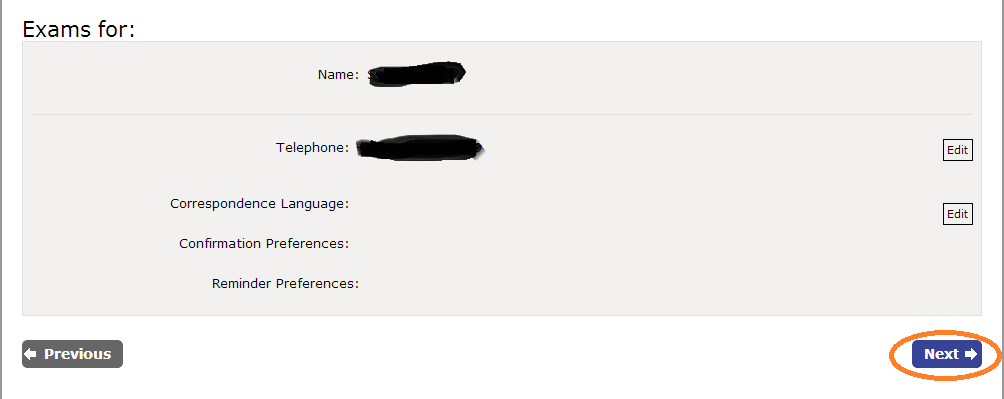
13. Click on Next


14. Agree with Vmware Terms and Policies and then click on next


15. Now add Voucher Code and Click on apply


 16. Then Click on Next

17. Then Click on Submit Order
18. Then Click on Begin Exam to Start the Exam

Feel free to contact me if you have any query


Tuesday, 12 November 2013

Network port diagram for Horizon View (2061913)

This article provides a network diagram and reference sheet for Horizon View 5.2.

When removing a VMFS, is it safe to remove the .dvsData folder and subfolders? (1018394)

Symptoms

When removing a VMFS volume, is it safe to remove the .dvsData folder and subfolders?

Resolution

The .dvsData folder and the subfolder are primarily used for VMware High Availability (HA) when working with a vNetwork Distributed Switch (vDS).

When the virtual machine is using a dvport on the vDS, the ESX/ESXi host periodically syncs the port state into a file in a .dvsDatasubfolder on the same datastore on which the virtual machine resides (that is, where the .vmx file is located). When a VMware HA event occurs and the virtual machine tries to power on a different ESX host, the destination host reads the dvPort state from that subfolder and starts the virtual machine on that datastore.

When performing VMFS maintenance, ensure that no virtual machines on this datastore are registered in vCenter. After you do this, you can safely remove the .dvsData folder and subfolders.

Source:-

Understanding vSphere 5.1 network rollback and recovery (2032908)

Purpose

This article provides an overview of the automatic rollback and recovery feature introduced in vSphere 5.1.

Note: For more information, see the vSphere Networking Guide. This guide contains definitive information. If there is a discrepancy between the guide and the article, assume the guide is correct.

Resolution

vSphere 5.1 and later allows you to rollback to previous networking configurations if a networking misconfiguration occurs. vSphere 5.1 also allows you to recover from any misconfiguration by connecting directly to a host to fix any networking issues through the Direct Console User Interface (DCUI). Rollback is available for use on both standard and distributed switches.

Background

The management network is configured on every host and is used to communicate with vCenter Server and to interact with other hosts during vSphere HA configuration and operation. It is critical to centrally managing hosts through vCenter Server. If the management network on the host goes down or there is a misconfiguration, vCenter Server cannot connect to the host and therefore cannot centrally manage the vSphere infrastructure.

In a vSphere standard switch (VSS) environment, you can recover from management network failure on the host by reconfiguring the host management network through a DCUI.

However, in the VDS environment, where multiple hosts are connected to a distributed switch, any network failure or misconfiguration of the management port group can potentially disconnect all hosts from the vCenter Server system. In this situation, vCenter Server cannot centrally make any changes to the VDS port group configuration and push those changes to hosts. The only way to recover from this situation is by going to individual hosts and building a VSS with a proper management network configuration. After all the hosts’ management networks have been reconfigured with a VSS and are able to communicate on the management network, vCenter Server can again manage the hosts and reconfigure the VDS.

To avoid such operational issues of going back to a VSS, if you do not have physical network interface card limitations on the hosts, you can make use of a VSS for the management network and a VDS for all other virtual infrastructure and virtual machine traffic. In such deployments, you must have at least four network adapters on the hosts: two connected to the VSS and two to the VDS.

The automatic rollback and recovery feature introduced in vSphere 5.1 addresses concerns regarding use of the management network on a VDS. First, the automatic rollback feature automatically detects any configuration changes on the management network. If the host cannot reach the vCenter Server system, it does not allow the changes to take effect. Second, you also have an option to reconfigure the management network of the VDS per host through the DCUI.

vSphere Network Rollback

In vSphere 5.1, rollback is enabled by default. However, you can enable or disable rollbacks at the vCenter Server level.

Several networking events can trigger a rollback. The events are grouped into these categories:
  • Host networking rollbacks (virtual switches or network system)
  • Distributed switch rollbacks
Host Networking Rollbacks

Host networking rollbacks occur when an invalid change is made to the host networking configuration. Every network change that disconnects a host also triggers a rollback. These changes to the host networking configuration are examples of what might trigger a rollback:
  • Updating the speed or duplex of a physical NIC
  • Updating DNS and routing settings
  • Updating teaming and failover policies or traffic shaping policies of a standard port group that contains the management VMkernel network adapter
  • Updating the VLAN of a standard port group that contains the management VMkernel network adapter
  • Increasing the MTU of management VMkernel network adapters and its switch to values not supported by the physical infrastructure
  • Changing the IP settings of management VMkernel network adapters
  • Removing the management VMkernel network adapter from a standard or distributed switch
  • Removing a physical NIC of a standard or distributed switch containing the management VMkernel network adapter
If a network disconnects for any of these reasons, the task fails and the host reverts to the last valid configuration.
Distributed Switch Rollbacks

Distributed switch rollbacks occur when invalid updates are made to distributed switch-related objects, such as distributed switches, distributed port groups, or distributed ports. These changes to the distributed switch configuration might trigger a rollback:
  • Changing the MTU of a distributed switch
  • Changing the following settings in the distributed port group of the management VMkernel network adapter
  • Teaming and failover
  • VLAN
  • Traffic shaping
  • Blocking all ports in the distributed port group containing the management VMkernel network adapter
  • Overriding the policies above for the distributed port to which the management VMkernel network adapter is connected
If an invalid configuration for any of the changes occurs, one or more hosts might be out of synchronization with the distributed switch.

If you know where the conflicting configuration setting is located, you can manually correct the setting. For example, if you migrated a management VMkernel network adapter to a new VLAN incorrectly, the VLAN might not be trucked on the physical switch. When you correct the physical switch configuration, the next distributed switch-to-host synchronization will resolve the configuration issue.

If you are not sure where the problem exists, you can rollback the distributed switch or distributed port group to a previous configuration. You perform both of these steps manually.
Note: For information on rolling back to a previous configuration with the vSphere Web Client or disabling network rollback using the vSphere Web Client, see Network Rollback and Recovery in the vSphere Networking Guide.

Recovering From Network Configuration Errors using the  Direct Console User Interface (DCUI).

vSphere 5.1 and later allows you to connect directly to a host to fix distributed switch properties or other networking misconfigurations using the Direct Console User Interface (DCUI).
 
Notes:
  • Recovery is not supported on stateless ESXi instances.
  • The Management Network must be configured on a distributed switch. This is the only way you can fix distributed switch configuration errors using the DCUI.
To restore VDS from DCUI:
  1. Connect to the DCUI.
  2. From the Network Restore Options menu, select Restore vDS.
  3. Type the correct values for VLAN uplink and blocked properties, where appropriate.
  4. Press Enter.
The DCUI clones a host local port from the existing misconfigured port and applies the values you provided for VLAN and Blocked. The DCUI changes the Management Network to use the new host local port to restore connectivity to vCenter Server. vCenter Server picks up the new host local port and updates its database with the new information. vCenter Server creates a standalone port that is connected to the Management Network.
Source:-

Configure Database Retention Policy

In order to limit the growth of the vCenter Server database and conserve storage space, you can configure the database to discard information about tasks or events after a specified period of time.
Do not use these options if you want to retain a complete history of tasks and events for your vCenter Server.
To configure the database retention policy, the vSphere Client must be connected to a vCenter Server system.
1
If necessary, select Administration > vCenter Server Settings to display the vCenter Server Settings dialog box.
2
Select Database Retention Policy.
3
(Optional) SelectTasks retained for, and enter a value in days in the text box.
Information about tasks performed on this vCenter Server system will be discarded after the specified number of days.
4
(Optional) SelectEvents retained for, and enter a value in days in the text box.
Information about events for this vCenter Server system will be discarded after the specified number of days.