Translate

Total Pageviews

My YouTube Channel

Friday, 26 September 2014

How to do the Initial Configuration of vCloud Automation Center Appliance(vCAC) 6.0? -Part1


vCloud Automation Center is a software product for unified cloud management.

vCloud Automation Center provides administrators with the ability to provision and configure storage, network and compute resources across multiple platforms. It also allows administrators to automate application delivery and simplify the deployment of multi-tiered applications while managing multi-vendor and multi-cloud infrastructures.


Procedure:-
1. After deploying the vCAC appliance then connect with the VAMI of this appliance to configure it. Type the https://vCAC<vCloudAutomationCenterApplianceFQDN>:5480 to configure the vCAC Appliance
username = admin
password = vmware
 
2. Change the default Password of admin user


3. Configure the NTP server

4. Configure the right time zone now
 5. Check the CAFE hostname is showing your vCAC appliance is resolved to correct name or not

6. Generate the Self Sign Certificate for vCAC

7. Configure SSO Server for vCAC

 
8. Click on Yes 

 9. Configure the vCAC Database

10. Configure the vCAC License

11. Connect with Admin UI of vCAC with this URL:- https://vCAC<vCloudAutomationCenterApplianceFQDN>/shell-ui-app

12. Verify the Default domain is visible here or not 


Monday, 22 September 2014

Reference Architecture – vCloud Automation Center (vCAC) 6.0 Distributed Environment

https://drive.google.com/file/d/0B8V7O8M7XFKmeUlOUFYwLVhvVlU/edit?usp=sharing

vCAC Virtual Appliances: 

As you may already know, in vCAC 6.0 VMware has introduced a new web tier to the architecture. In our case here, two nodes are deployed for high availability and load balancing. Those appliances are completely stateless which means that all the configurations are stored on the database tier (see the Databases section below). That said, you can have any load balancer in front of those appliances to load balance the end-user traffic to the portal and to monitor also the connection in case one node goes down. In such a case, your LB should automatically switch the traffic to the active node. In your appliances configuration also, you must have your Load balancer hostname set there, not the actual vCAC VA node hostname. I have included in my architecture a very detailed information with regards to hostnames and IP addresses to make it easier for the viewer to understand the configuration parameters. More on the LB configuration in the second blog post.

Identity Appliance (SSO):

This is a virtual appliance that was released with vCAC 6.0 and you can find it within the same download page. Unlike what most of us know, this is *not* a mandatory components anymore after the vCenter SSO 5.50b was release. The latter is compatible with vCAC 6.0 and can be used instead of the identity appliance. One would still argue though that the Identity Appliance would be beneficial for advanced architectures like exposing/publishing the vCAC 6.0 portal on the Internet – more on that in a future blog post. Meanwhile, if you are architecting a solution for your private cloud, the vCenter SSO 5.5.0b is definitely the way to go.

Databases:

There are two kind of databases required in this distributed architecture:
1) MS-SQL database: this will host the DBs for the vCenter Server (and relevant components) as well as the vCAC IaaS components and the vCenter Orchestrator. You can use a Windows Failover Cluster (aka MSCS) for the high availability of that database tier.
2) PostgresSQL database: this will host the DB of the vCAC appliances. Please note that you only need this external DB if you are clustering your vCAC virtual appliances for load balancing and high availability as explained above. If you have a relatively small environment or you do not want to cluster your vCAC virtual appliances for any reasons, you can just use one node with it’s embedded PostgresDB. In this case, you can still have high availability using the native vSphere HA. Another important point to note here, in my architecture you can see that the PostgresSQL DB is clustered. While this will work just fine, I cannot confirm (at the time of this writing) that it is a supported configuration by VMware. If you want to have more details on the clustering part of the PostgresDB, you can check out this blog post.

ITBM Standard Edition:

This is a standalone appliance that you can deploy and configure to integrate with vCAC and to collect your statistics from either vCenter Server, vCloud Director and/or external clouds (as end-points). When installed, the ITBM registers itself with vCAC and you get your UI and configuration panels right from the vCAC portal under a new tab called “Business Management”. Now, back to our architecture, this is a standalone appliance as I’ve mentioned that you just deploy inside your management cluster. Standard vSphere HA should be used here since you do not really need a 100% uptime for this type of application. A single ITBM appliance can support 20,000 VMs in version 1.0 without the need to scale up it’s resources.

vCloud Application Director (AppD):

This is another standalone appliance that comes with the vCAC 6.0 Enterprise Edition. Same as ITBM, you can deploy this virtual appliance to your management cluster and then register it with your vCAC environment. Please note that, in this 6.0 release, you will still need to manage your configurations and application blueprints from AppD directly, not from within the vCAC 6.0 portal as ITBM. In the official product documentation, the minimum configuration required for this appliance is 1vCPU and 2GB memory. At that point, you have to ask yourself what would be considered more important, the performance or the availability. The reason why I mention this is because you can protect your AppD appliance with vSphere FT (using 1vCPU). If performance is considered more important, you may want to go with the default settings of the appliance which is 2vCPUs but in that case you can’t protect the appliance with vSphere FT as it doesn’t support vSMP (yet!). In the latter case, you can still take some measures to ensure the availability for your AppD appliance like backup (or full image clones), enabling vSphere HA and so forth.

vCAC IaaS Web tier:

This is the traditional web tier that was inherited from the old DynamicOps acquisition. It still has the same characteristics and recommendations as it was back in the vCAC 5.x days. The only difference here is that the IIS pages of this web tier are actually “framed” within the vCAC VA front-end portal. For example, when you want to add a new Endpoint to your cloud environment, you will navigate through the vCAC VA portal menus until you click on the Endpoints button. At that point, we are actually grabbing an IIS page and framing it for you within the vCAC portal. That way, we are providing a consistent experience to the cloud admins for all the configuration wizards and  panels that they have been doing from the old days of vCAC 4.x/5.x. Back to the architecture, this web tier is active/active and stateless as it has always been. Like the vCAC VAs, you will need a load-balancer virtual IP for these web nodes as illustrated in the diagram.

vCAC IaaS Manager Service (aka Application Server):

This is another IaaS component that is ported from the old DynamicOps architecture. It is still an Active/Passive application tier that requires a manual intervention to start the service in case the first active node goes down. You will still need also to use a load balancer with a virtual IP to pass the traffic to the active node. If that node went down, the load-balancer can switch over to the other node but, again, the service has to be started manually. It is recommended also to stop the service on the LB before enabling it on the actual Manager Service node and then do the switch over.
Since this is an active/passive configuration, I like also to place the DEM-Orchestrator along with it. Two reasons for that. Firstly, the DEM-O is also an active/passive in functionality. If you have two DEM-O nodes, both will be active on the network (to monitor each others) but only one will be actually doing the work. The failover process is automated though, unlike the Manager Service. Secondly, the DEM-O should be as close as possible to the Manager Service for best performance. You can definitely use another dedicated VMs for your DEM Orchestrator nodes if you are worried about the performance of the VMs or if you like to completely segregate all your management workloads.

Model Manager Service vs. Model Manager Data:

During the setup of your IaaS components, you will see an item titled “ModelManagerData” as shown in the screenshot below. Do not confuse this with the actual Model Manager web service that gets installed automatically on the vCAC Web tier mentioned above. This ModelManagerData gets installed only once. It is basically to populate the database (the MS-SQL DB) with the default model data.

vCenter Orchestrator:

As you probably know, vCO is quite big now in this release of vCAC 6.0. You can do some amazing [X]aaS stuff right from your vCAC portal which will be in essence backed up by your vCO engine. Having said that, you should not be compromising on the availability of this important component in your infrastructure. Just like all the active/active components above, you can leverage the same load-balancer that you have to distribute the load across your vCO nodes. The Installation and Configuration product manual of vCO 5.5 provides a detailed instructions for your consideration when setting up this cluster.
 
Info taken From:-

Current VCPs – Save 25% off VCP Exams& Get Recertified

If you’re a current VMware Certified Professional (VCP), you can save 25% off any VCP exam taken before January 1, 2015. 

This is a great opportunity to save money and get recertified before the March 10, 2015 deadline.

To claim your 25% exam discount, just enter discount code VCPRECERT25 when you register for an eligible VCP exam. Eligible exams are listed here along with the complete terms and conditions.

Thursday, 18 September 2014

How to Use Google Authenticator To Provide Two-Factor Authentication For ESXi?


Summary

Google Authenticator is a project that provides two-factor authentication by using both a PAM (Pluggable Authentication Module) module and a mobile application for generating one-time passcodes. In ESXi Google Authenticator, we modified the source code of Google-Authenticator to enable two-step authentication on ESXi (5.0, 5.1).

Features

  • Two-Factor Authentication for ESXi Shell and SSH access
  • Supports multiple administrators login on esx5.1, and single admin (root) on esx5.0
  • Support for 30-second TOTP codes
  • Support for emergency scratch codes
  • Protection against replay attacks
Disclaimer: This is not officially supported by VMware, use at your own risk


Installing Google Authenticator Custom VIB / Offline Bundle


Prerequisite:
  • Ensure that your ESXi host's clock is in sync with a proper time source (skew should be < 4minutes)
  • Keep a separate SSH connection open to your ESXi host, in case something goes wrong you can easily revert the changes else you can potentially lock yourself out
Step 1 - Download either the Google Authenticator VIB. Here is Link to download this then i extracted this file named esx_google-authenticator_1.0.0-0.vib and using winSCP i copied it in ESXi host /tmp directory.
 
Step 2 - You will need to change the acceptance level of your ESXi host to Community Supported as this is a requirement for any custom VIBs created.
 
 
Step 3 - To install Google Authenticator VIB, you will need to run the following ESXCLI command and specify the full path of the VIB:
 
 
Step 4 - You can verify the Google Authenticator was installed successfully by running the following ESXCLI command:
esxcli software vib get -n esx_google-authenticator


Configuring Google Authenticator & ESXi Configurations


Step 1 - Download the Google Authenticator app for your mobile phone. Here is link for the Android Phone
Step 2 - Next you will need to configure Google Authenticator for the ESXi host, run the google-authenticator command in the ESXi Shell which will start the setup.
You should see a URL as well as the secret key which you will need to enter into your Google Authenticator mobile app. You can either manually add your ESXi host into the mobile app by entering the secret key OR copy and paste the URL into a web browser which provides a QRC code that the mobile app can just read.
For all the prompted questions, you can use yes for the defaults.
Step 3 - You will need to add the following configuration to your SSHD configuration under /etc/ssh/sshd_config
ChallengeResponseAuthentication yes
Step 4 - You will also need to add the following entry to the following PAM configuration files /etc/pam.d/login and/etc/pam.d/sshd
auth   required   pam_google_authenticator.so
To add the entry into both files on the ESXi Shell, run the following two commands
sed -i -e '3iauth       required     pam_google_authenticator.so\' /etc/pam.d/login
sed -i -e '3iauth       required     pam_google_authenticator.so\' /etc/pam.d/sshd
Note:  To ensure the above configuration persists after a reboot, you will need to add the two sed commands to/etc/rc.local.d/local.sh for ESXi 5.1 or /etc/rc.local for ESXi 5.0 hosts which will automatically add the entries upon bootup. 
Finally, you will need to restart the SSH daemon for the changes to go into effect by running the following command:
/etc/init.d/SSH restart
Step 5 - To validate that everything was configured correctly, open a new SSH session to your ESXi host. Instead of seeing the usual password prompt, you should now see a verification code prompt. Open up your Google Authenticator mobile app and enter the code that is displayed for your ESXi host and then enter the root password.

This is a pretty nifty and free solution to provide two-factor authentication for your ESXi hosts. 


Wednesday, 17 September 2014

VCAP5-DCD Exam Info

VDCD550

Number of Questions = 46
Time Limit = The total time for this exam is 195 minutes. Candidates who take the VCAP-DCD Exam and have a home address in a country where English is not a primary language will have an additional 30 minutes added to the exam time. This time extension is automatic, no additional action is required from the candidate.
Passing Score = The passing score for this exam is 300 out of 500
Questions Types = The items include a mixture of drag-and-drop items and design items using an in-exam design tool. A short pre-exam survey is performed, consisting of 7 items.During the exam candidates are presented with 5 design items in which a VMware vSphere-based solution is designed based on customer requirements using an in-exam design tool. These items take significantly longer to complete than multiple choice or drag-and-drop items, and time should be budgeted accordingly during the exam. There is also 1 master design item, for which a MINIMUM of 30 minutes should be allocated.

For more info:-
https://mylearn.vmware.com/lcms/web/portals/certification/VCAP_Blueprints/VCAP-DCD-VDCD550-Exam-Blueprint-v3_3.pdf

VDCD510

Number of Questions = 100
Time Limit = The total time for this exam is 225 minutes. Candidates who take the VCAP5-DCD Exam in a country where English is not a primary language will have an additional 30 minutes added to the exam time.
Passing Score = The passing score for this exam is 300 out of 500
Questions Types = During the exam candidates are presented with 6 design items in which a VMware vSphere-based solution is designed based on customer requirements using an in-exam design tool. These items take significantly longer to complete than multiple choice or drag-and-drop items, and time should be budgeted accordingly during the exam.

For more info:-
https://mylearn.vmware.com/lcms/web/portals/certification/VCAP_Blueprints/VCAP5-DCD-Exam-Blueprint-v3_0.pdf 

New VMware Fling: Introducing PowerActions for vSphere Web Client


I am happy to announce a new fling ‘PowerActions for vSphere Web Client’ PowerActions integrates the vSphere Web Client and PowerCLI to provide complex automation solutions from within the standard vSphere management client. In short, we can now run PowerShell/PowerCLI scripts from the Web Client!

How does it work?

PowerActions is a vSphere Web Client Plugin that allows users to run PowerCLI scripts from the vSphere Web Client interface. These commands are sent to a separate machine running PowerCLI and the PowerActions software. The PowerActions Plugin includes two menu items on the homepage of the Web Client as well as a PowerCLI menubar item when the user right-click’s on objects within the web client (read more below).

What are the Requirements?

The requirements are pretty straightforward and simple:
  • VMware vSphere 5.1 or later (Earlier than 5.1 has not been tested)
  • PowerShell Host Machine
    • Windows 2003 Server or newer (*)/Vista or newer
    • ***.NET framework 4.0*** <— 4.0 IS REQUIRED. Newer versions currently do not work
  • PowerCLI version supporting your current VMware vSphere version
  • Administrative privileges (registering a service with VMware Lookup Service and creating a user for SSO) are required for installation, but not for use of the product.
  • Prior to installation, ensure that the PowerShell Host machine and the machine hosting the VMware Lookup Service are synced via the same time source, otherwise cryptic error messages may appear.

Installation

In my case I went ahead and deployed a new Windows Server 2008r2 Virtual Machine. I let it run all of the Windows Updates (and then had to uninstall .Net Framework 4.5.1.
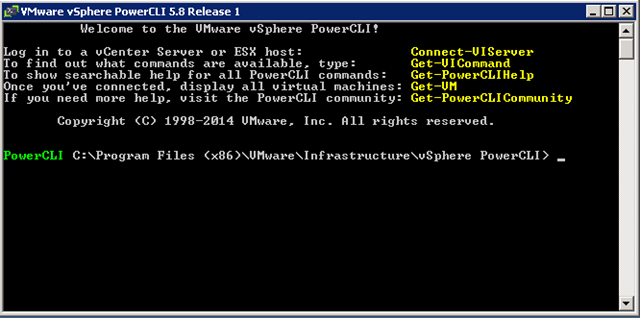
I then had to install PowerCLI. I went ahead and installed the latest (vSphere PowerCLI 5.8 release 1).
Screenshot 2014-09-16 12.09.35
***Note*** Make sure to run PowerCLI as administrator after it is installed and run:
Set-ExecutionPolicy RemoteSigned
If the execution policy is not changed from it’s default, the PowerCLI Console in the Web Client will not function. /***Note***
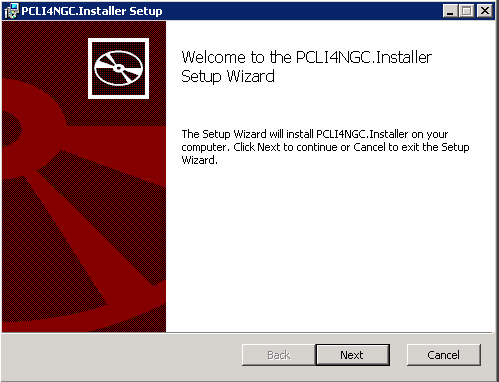
Once I had my virtual machine ready (All of my Prerequisites have been satisfied to this point), I’ll go ahead and run the PowerActions executable.
Screenshot 2014-09-16 12.01.10
The PowerActions interactive install wizard will pop up. Click ‘Next’
Screenshot 2014-09-16 11.59.02
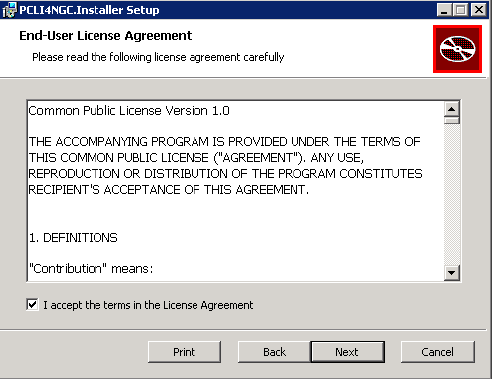
Look at the License Agreement, then check the “I accept the terms in the License Agreement”
Screenshot 2014-09-16 11.59.02
You can go ahead and use the defaults on this page. Click ‘Next’
Screenshot 2014-09-16 11.59.08
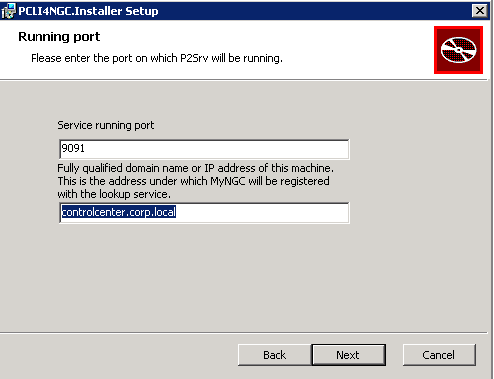
On this page you’ll want to add the FQDN of the current machine. In my case, it’s ‘controlcenter.corp.local’.
Screenshot 2014-09-16 11.59.08
On this screen, you will need to enter the Lookup Service URL, SSO username, and SSO Password.
The Lookup Service URL will be https://yourvcenter:7444/lookupservice/sdk
Screenshot 2014-09-15 21.14.49
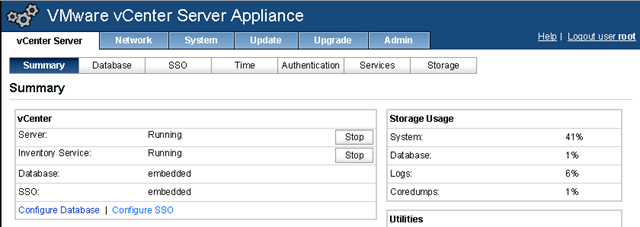
If you are using the vCenter Server Appliance (vCSA) you may not have configured your vCenter’s SSO. If that is the case, login to the vCSA appliance (https://yourvcenter:5480″)
You will need to stop the vCenter Server service to setup SSO.
Screenshot 2014-09-16 12.39.51
Navigate to the SSO section and type a new SSO administrator password. Click ‘Save Settings’
Screenshot 2014-09-16 12.40.10
You will receive a warning (Warning: The embedded SSO Server will be completely reinstalled and any locally created users and groups will be lost.) (This is something you should only do if you have not setup SSO previously) Click ‘Ok’.
Screenshot 2014-09-16 12.40.16
Once SSO reinstalls and initializes, navigate back to the Summary section and start the vCenter Server service.
Screenshot 2014-09-16 12.39.51
We can now enter our newly created SSO account info into the lookup service screen of the PowerActions installer. Click ‘Next’.
Screenshot 2014-09-15 21.14.49
click ‘Install’.
Screenshot 2014-09-16 11.59.22
Once the installation finishes we’ll be ready to roll.

Show me the magic!

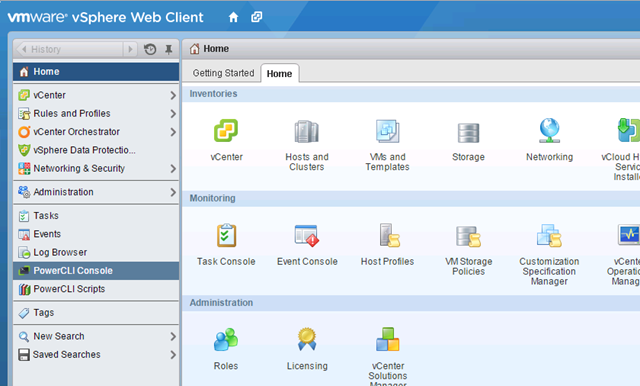
Now that we’ve completed the installation we can login to the vSphere Web Client. You will now see two new menu items on the left-hand side of the screen. ‘PowerCLI Console’ and ‘PowerCLI Scripts’.
Screenshot 2014-09-16 12.53.11
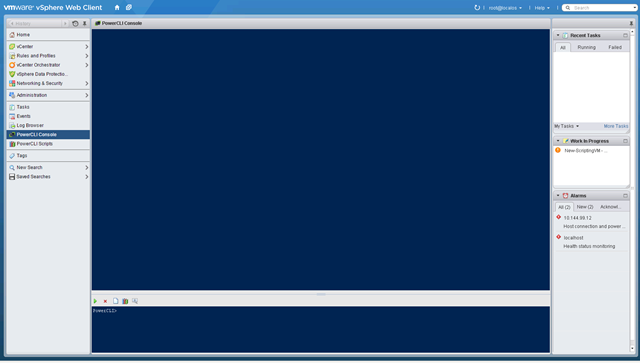
Clicking on the PowerCLI Console button will bring up just that, a PowerCLI Console for running commands (did I just hear all Mac and Linux users shout for joy??).
Screenshot 2014-09-16 13.12.03
running ‘get-vm’ returns everything it would from run PowerCLI on a windows machine.
Screenshot 2014-09-16 13.10.43
If we go to the PowerCLI Scripts menu item it brings us to a script repository. This area allows users to save personal scripts as well as setup shared scripts. This is a fantastic capability to have a repository of scripts that can be run by you and/or others without duplicating efforts. You can see I’ve already added in a few scripts.
To add a script click the “create a script” icon below the “MyScripts” dropdown.
Screenshot 2014-09-16 13.17.42
The scripts are organized by object. Decide which object the script will be used for (this is important as when you click on a vSphere object, the scripts that appear to run are only those that are linked to that object type).
Screenshot 2014-09-16 13.17.56
Name your script, give it a description, and select either Action or Report (is your script DOING something or Reporting)
Screenshot 2014-09-16 13.18.57
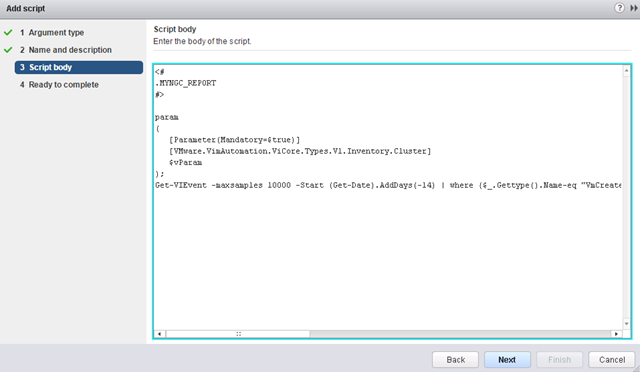
In this screen, we can add our code for this script. Add it below the param line. The $vParam is where the object that is right-clicked in the Web Client is stored. For example (you’ll see in my screenshots below as well) I right-click a cluster ‘Main-CL’ and run the following script on it. Because I right-clicked ‘Main-CL’ that object is than saved in $vParam. $vParam can then be used later on in your script as well.
Screenshot 2014-09-16 13.20.37
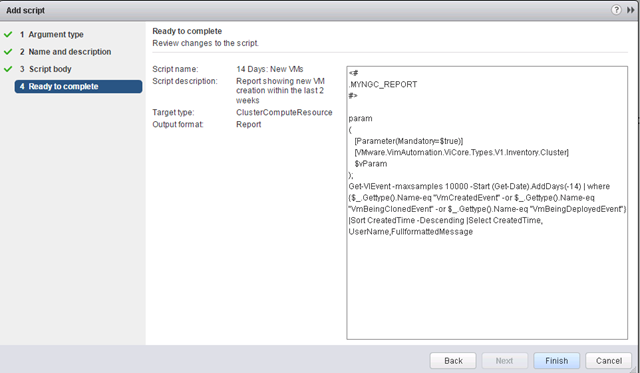
The final page allows you to review all the information you’ve entered in this wizard. If you are satisfied, click ‘Finish’
Screenshot 2014-09-16 13.20.45
We can then navigate to specific objects within the Web Client, right-click the object, hover over PowerCLI, and click ‘Execute Script’
Screenshot 2014-09-16 13.21.32
Select the script you want to run, click ‘Ok’.
Screenshot 2014-09-16 13.21.39
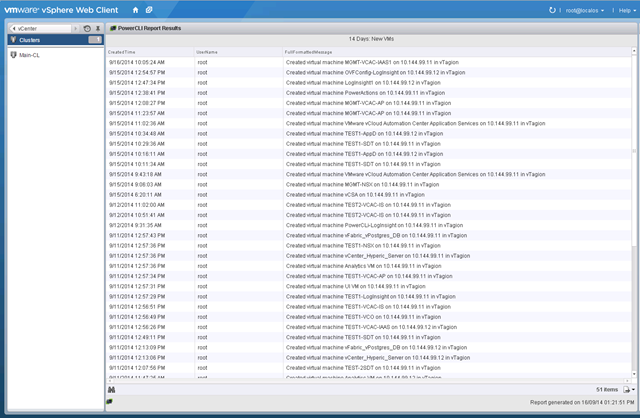
The script will run and the results are returned in a nicely formatted manner. you can click on the “Export Page” button in the bottom-right if you want to save your results.
Screenshot 2014-09-16 13.21.59

Downloads

PowerActions can be downloaded HERE

Conclusion

This article just scratches the surface on the capabilities of PowerActions. I am excited to see where the community takes this and the types of scripts that will start appearing around the web. The ability for Linux and Mac users to now run PowerCLI commands without having to be running on a Windows machine should make many users elated. Give PowerActions a shot and give them your feedback!
For a great video on this new fling check out Alan Renouf’s post on PowerActions HERE
Source of this Info: