Translate

Total Pageviews

My YouTube Channel

Thursday, 11 February 2016

How to Execute the API commands in vCSA 6.0 Shell?

The API commands in the vCenter Server Appliance let you perform various administrative tasks in the vCenter Server Appliance. The API commands are provided by appliance management service in the vCenter Server Appliance. You can edit time synchronization settings, monitor processes and services, set up the SNMP settings, firewall and so on. Here is step by step of how to execute API Commands:-
1. Access vCSA Shell Locally (Alt+F1) or through SSH

2. Enable the vCSA Shell by using this command or through vCSA DCUI:-

shell.set --enabled true

3. Run this command to list all API commands:-

help api list 


4. Let's assume you want to check firewall rule those are created on vCenter Run this API command:-

com.vmware.appliance.version1.networking.firewall.addr.inbound.list


5. I have one rule in vCenter. Now if you want to delete these rules you can execute this API Command:-
com.vmware.appliance.version1.networking.firewall.addr.inbound.delete --position INT  

Replace INT with Rule Integer Value

Example:-

com.vmware.appliance.version1.networking.firewall.addr.inbound.delete --position 0

Note:- if you need help on any API command then use this:-
<API Command>  --help


For more info on API Commands in vCSA refer VMware Documentation 

Wednesday, 10 February 2016

Missing Hardware Status Tab in vSphere Client for ESXi Host

If you wondered after connecting with vCenter Server from vSphere Client that "Where is Hardware Status Tab?".


So no need to wonder now because This is by design in vSphere 6.0. The vSphere Client 6.0 no longer supports the hardware status plug-in. This is an expected behavior. This functionality is available in the vSphere Web Client 6.0. Refer this KB  for more info

Tuesday, 9 February 2016

vCSA a.k.a vCenter Server Appliance 6.0 DCUI and vCSA Bash Shell Step by Step

In vCSA 6.0 to configure the appliance intially VAMI (that is accessed through port 5480) is not available. But this is back in vCSA 6.0 Update 1. Check the VMware Release Notes for What's new in vCSA 6.0 Update 1 from here. So in vCSA 6.0 Instead of VAMI, DCUI is available.

  • DCUI = Direct Console User Interface
  • VAMI = Virtual Appliance Management Interface

In this blogpost, i will discuss how to Use DCUI in vCSA 6.0 and How to access vCSA 6.0 Shell.

How to Use DCUI in vCSA 6.0

1. Deploy the vCSA and Power it On.
2. Open the vCSA VM Console. This is what you will get when you will access console.
F2 = To login in to the system and to customize it
F12 = To Shutdown or to Restart it 


2.  Press F2 to Login and to Customize vCSA and then provide the Username and Password

 
3. Once Logged in then you will get these options:-
  • Configure Root Password
  • Configure Management Network
  • Restart Management Network
  • Troubleshooting Mode Options
  • View Support Information


4. Configure Root Password is to Change the existing root user password


5. Configure Management Network is to Use Change IP, Subnet Mask, DNS & Default Gateway


6. Restart Management Network option is used to restart management network services in case you have connectivity issues with vCSA.


7. Troubleshooting Mode Options you can use to Enable/Disable SSH or Bash Shell


8. View Support Information option you can use to get some more details about vCSA


How to Use Bash Shell in vCSA 6.0

1. Enable the Bash Shell. There are two options to enable it:-
  • Either Use Troubleshooting Mode Options
  • Either Use Alt+F1 to Switch to Shell from DCUI and the execute this command shell.set --enabled True 
 Once Enabled then execute the command shell
 

Friday, 5 February 2016

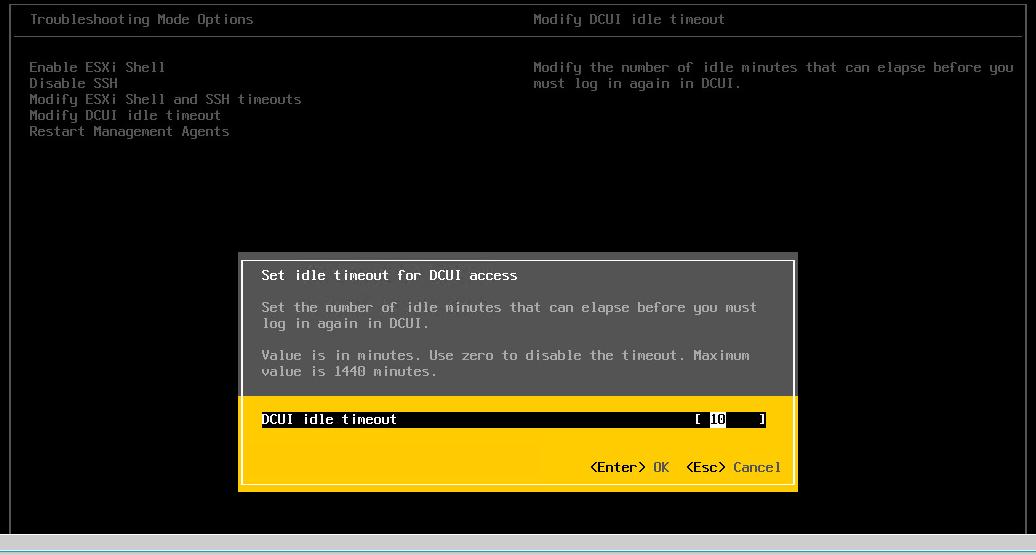
ESXi Shell, SSH and DCUI Timeout Settings in vSphere 6.0

Any user with the Administrator role can execute system commands using the ESXi Shell. If a user enables the ESXi Shell on a host, but forgets to log out of the session, the idle session remains connected indefinitely. The open connection can increase the potential for someone to gain privileged access to the host.

There are 2 timeout settings you should enable to control ESXi Shell and SSH sessions:
These are not new settings, these were present in ESXi5 as well.
ESXi Shell Availability – ESXiShellTimeOut– How long the ESXi Shell and SSH services will run. After this timeout interval service will be stopped automatically and one cannot connect with ESXi shell or SSH after this timeout.
Steps:-
1. Configure this timeout value from DCUI (You an even use vSphere Client, vSphere Web Client, PowerCLI)
2. Then after this timeout configuration, enable ESXi shell and SSH


Idle ESXi Shell Sessions – ESXiShellInteractiveTimeOut
– How long a shell session can remain inactive before being automatically terminated. This means sessions can be initiated again after this termination as this is just idle session timeout.

From DCUI:-


From vSphere Web Client:-


DCUI Timeout Setting:-
This is new in vSphere 6.0
 – How long a DCUI session can remain inactive before being automatically terminated

From DCUI:-


 From vSphere Web Client:-


There are different ways to configure these timeout settings, some in minutes and some in seconds:-
1. vSphere Client uses seconds
2. vSphere Web Client uses seconds
3. vSphere API PowerCLI uses seconds


To set these by PowerCLI use the Set-AdvancedSetting cmdlet – in the below example the ESXiShellInteractiveTimeout is set to to 5 minutes (300 seconds) on the host.

Get-VMHost esxi | Get-AdvancedSetting -Name'UserVars.ESXiShellInteractiveTimeout' | Set-AdvancedSetting -Value "300"


4. Direct Console User Interface (DCUI) uses minutes

Thursday, 4 February 2016

VMware Product Lifecycle Matrix

Download VMware Product Lifecycle Matrix Guide from here

Source:-
VMware Technical Whitepaper

Wednesday, 3 February 2016

What is Software-Defined?

Software-Defined
Moving the Intelligence from specific Hardware to Software is known as Software-Defined.
Software-Defined Storage (SDS)
Software-defined storage (SDS) is an approach to data storage in which the programming that controls storage-related tasks is decoupled from the physical storage hardware.
Examples:-
EMC ViPR
VMware Virtual SAN

Software-Defined Networking (SDN)
Software-defined networking (SDN) is an approach to computer networking that allows network administrators to manage network services through abstraction of higher-level functionality. The goal of SDN is to allow network engineers and administrators to respond quickly to changing business requirements. In a software-defined network, a network administrator can shape traffic from a centralized control console without having to touch individual switches, and can deliver services to wherever they are needed in the network, without regard to what specific devices a server or other device is connected to. The key technologies are functional separation, network virtualization and automation through programmability.

Examples:-
Juniper Contrail
VMware NSX

Software-Defined Compute (SDC)
With software-defined compute, the computational functions can happen in any number of hardware devices in the cloud, as needed, rather than be assigned to a specific hardware device. In addition, the compute functions can be moved around to different pieces of virtual infrastructure, depending on the availability of resources.

Examples:-
Microsoft Hyper-V
VMware ESXi
Citrix XenServer

Don't Miss it....VMware's February Launches: The IT Agenda for 2016 - Enabling the Digital Enterprise

Be the first to hear the latest news about how VMware’s One Cloud, Any Application, Any Device™ architecture for IT is helping enable the digital enterprise from mobile devices to the data center and the cloud. This two-part online event will inspire, motivate, and deliver the elements you need to move your IT agenda forward in 2016.


Register For the Event:-


http://www.vmware.com/digitalenterprise?src=sc_56aa8f0078562&cid=70134000000NyuW

Sunday, 31 January 2016

Support for virtual machine disks larger than 2 TB in VMware ESXi 5.5 (2058287)

Purpose

VMware ESXi 5.5 introduces supportability for virtual machine disks (VMDKs) larger than 2 TB. 

This article provides information on the conditions and limitations of large capacity virtual disks in ESXi 5.5.

Resolution

In vSphere 5.5, large capacity virtual disks have these conditions and limitations:
  • An ESXi 5.5 or later host is required.
  • The maximum supported VMDK size on an VMFS-5 datastore is increased to 62 TB. However, the maximum supported VMDK size on VMFS-3 is still 2 TB.
  • The maximum supported size of a VMDK on NFS is the lesser of 62 TB and 1% less than the maximum file size supported by the NFS filesystem.

    Notes:
    • The largest file size depends on the underlying file system (for example, 16 TB on ext3).
    • A maximum of 62 TB is enforced, even if the underlying NFS filesystem supports a greater size.
  • The maximum supported size of a virtual mode Raw Device Mapping (vRDM) has also been increased from 2 TB to 62 TB.
  • A VMDK larger than 2 TB can be created on a virtual machine that is powered on or off, but extending a VMDK beyond 2 TB is only supported when the virtual machine is powered off.
  • You must use the vSphere Web Client to create or extend a VMDK beyond 2 TB. For more information, see the Troubleshootingsection.

Virtual machines with large capacity disks have these conditions and limitations:
  • The guest operating system must support large capacity virtual hard disks.
  • You can only move or clone disks that are greater than 2 TB to ESXi 5.5 hosts, or to clusters that have such hosts available.
  • The datastore format must be VMFS-5 or later, or an NFS volume on a Network Attached Storage (NAS) server.
  • vSphere Flash Read Cache supports a maximum hard disk size of 16 TB.
  • VMFS-3 volumes are not supported. You cannot move disks greater than 2 TB from a VMFS-5 datastore to a VMFS-3 datastore.
  • You cannot hot-extend a virtual disk if the capacity after extending the disk is equal to or greater than 2 TB. Only offline extension of GPT-partitioned disks beyond 2 TB is possible.
  • Fault Tolerance is not supported.
  • Virtual SAN is not supported.
  • BusLogic parallel controllers are not supported.
  • Virtual machines with large capacity virtual hard disks or disks greater than 2 TB must meet resource and configuration requirements for optimal virtual machine performance. The maximum value for large capacity hard disks is 62 TB. When you add or configure virtual disks, always leave a small amount of overhead. Some virtual machine tasks can quickly consume large amounts of disk space, which can prevent successful completion of the task if the maximum disk space is assigned to the disk. Such events might include taking snapshots or using linked clones. These operations cannot finish when the maximum amount of disk space is allocated.
  • In environments without shared storage, operations such as snapshot quiesce, cloning, Storage vMotion, or vMotion can take significantly longer to finish.
  • You cannot relocate RDMs larger than 2 TB to datastores other than VMFS-5 or, to hosts older than ESXi 5.5.
  • To enable the Microsoft Windows operating system to address a maximum storage capacity for a device greater than 2 TB, the disk must be initialized by using the GUID partition Table (GPT) partitioning scheme. For more information, see Windows support for hard disks that are larger than 2 TB.

    Note: The preceeding link was correct as of September 8, 2014. If you find the link is broken, please provide feedback and a VMware employee will update the link.
Changes in virtual machine snapshots for VMDKs larger than 2 TB:
  • Snapshots taken on VMDKs larger than 2 TB are now in Space Efficient Virtual Disk (SESPARSE) format. No user interaction is required. The redo logs are automatically created as SESPARSE instead of VMFSSPARSE (delta) when the base flat VMDK is larger than 2 TB.
  • Extending a base flat disk on VMFSSPARSE or SESPARSE is not supported.
  • The VMFSSPARSE format does not have the ability to support 2 TB or more.
  • VMFSSPARSE and SESPARSE formats cannot co-exist in the same VMDK. In a virtual machine, both types of snapshot can co-exist, but not in the same disk chain. For example, when a snapshot is taken for a virtual machine with two virtual disks attached, one smaller than 2 TB and one larger than 2 TB, the smaller disk snapshot are VMFSSPARSE the larger disk snapshot are SESPARSE.
  • Linked clones are SESPARSE if the parent disk is larger than 2 TB.

Troubleshooting
  • When you attempt to extend a VMDK beyond 2 TB on a powered on virtual machine, you see this error in the client:

    Hot-extend was invoked with size (*** sectors) > =2TB. Hot-extend beyond or equal to 2TB is not supported. This disk extend operation failed: msg.disklib.INVAL

    To resolve this issue:

    • Power off the virtual machine and retry the extend operation.
    • Detach the VMDK from the original virtual machine and attach to any other powered off virtual machine and then increase the size to the desired size. Detach the VMDK from the temporary powered off vm and attach back to the original Virtual machine
  • When you attempt to create a large virtual disk on a VMFS-3 datastore or on NFS using ext3, you see this error in the vSphere Client or when using vmkfstools:

    Failed to create virtual disk: The destination file system does not support large files (12).
  • When you attempt to create a large VMDK using the vSphere Client, you see the error:

    The disk capacity entered was not a properly formed number or was out of range. It has been replaced with the nearest acceptable value
    DiskCapControl : value 6924239004288 is out of range (1048576,4398046511104)


    Checking the size of the newly created or expanded VMDK, you find that it is 4 TB.

    To resolve this issue:

For more information, see:
Source:-

Saturday, 30 January 2016

Request is IN PROGRESS in vCAC 6.2 - How to delete it?

In vCAC (or vRealize Automation now), many requests were blocked in status “In Progress” since few weeks or months!

In this POST i will discuss how to delete or clean up those IN PROGRESS request. Here i will demonstrate how to delete them from database.


In this Example the Request Number is 6. In my case i took the screenshot after deleting the request 6 so you will not get the visibility of request number 6 in below given screenshot. But this is the place where you can check the request information.


Steps:-
1. Connect with vCAC/vRA appliance through SSH client like Putty
2. Go to the bin directory of vPostgres
cd /opt/vmware/vpostgres/9.2/bin/·


 3. Connect to the vcac database with the username”vcac”


4.  To Get the request ID of request number 6
SELECT id,requestnumber FROM cat_request where state=’IN_PROGRESS’ and requestnumber = 'RequestNum';


5. Then Execute this command:-
delete from cat_requestevent_details where requestevent_id in(select id from cat_requestevent where request_id =''); 


The return can be 0.

6. Execute this Command
delete from cat_requestevent where request_id = ”;


The return will be 3. 

7.  Now execute this Command
delete from cat_request where id =’ID’;


The return will be 1.
 
8. Finally exit from psql by using this command
\q and Press Enter

Now refresh your web browser and request will now no more there. Repeat the same procedure for the remaining IN PROGRESS requests.

Source:-
http://kb.vmware.com/selfservice/microsites/search.do?language=en_US&cmd=displayKC&externalId=2114385&src=vmw_so_vex_ragga_1012 

401 - Unauthorized: Access is denied due to invalid credentials. You do not have permission to view this directory or page using the credentials that you supplied.

Issue:-
Unauthorized: Access is denied due to invalid credentials. You do not have permission to view this directory or page using the credentials that you supplied. while requesting a Service in vRealize Automation.


Reason:-
It was because of vCenter Inventory Service.

Solution:-
Restart vCenter Inventory Service.

Friday, 29 January 2016

Restore the vCenter Server 6.0 Appliance vPostgres Database

Backing up and restoring your database protects the data stored in your database. When you install vCenter Server, if you want to use the embedded vPostgres database and later have to uninstall vCenter Server, all data is lost, because the embedded vPostgres database is also uninstalled.
To minimize the risk of data loss, you must regularly back up and restore the vPostgres database in both vCenter Server and the vCenter Server Appliance.
 

Note: This article is only supported for backup and restore of the vPostgres database to the same vCenter Server or vCenter Server Appliance. Use of image-based backup and restore is the only solution supported for performing a full, secondary appliance restore.


• Visit the KB article and download the linux_backup_restore.zip file.  Extract restore_lin.py script to the desktop
• SSH to the vCenter 6.0 appliance and login as root
• To enable the bash shell
Type shell.set --enabled true
• To access the bash shell
Type shell
• To change the default shell to bash
Type chsh -s /bin/bash root
• Using WinSCP, connect to vCenter 6.0 appliance and transfer the restore_lin.py file and the backup_VCDB.bak database file from the desktop backup folder.  Make a note of where you transfer the files (/root is a good place).
• Return to the ssh session and change directory to where you placed the restore file and database
• To make it executable
Enter chmod 700 ./restore_lin.py
• Stop the vmware-vpxd and vmware-vdcs services:
service vmware-vpxd stop
service vmware-vdcs stop

• Enter python ./restore_lin.py -f backup_VCDB.bak and wait for the restore to complete (You should see "Restore completed successfully.")
• Start the vmware-vpxd and vmware-vdcs services:
service vmware-vpxd start    
service vmware-vdcs start