My YouTube Channel

Friday, 20 March 2020


Wednesday, 18 March 2020
Reset vRealize Lifecycle Manager (vRLCM) admin@localhost user password
If you are unable to login to vRLCM console through admin@locahost user account and wants to reset admin@locahost user password. Here is how you can do this:
1. Login to vRLCM Console as root user via SSH or VM Console
2. Then run this command
/opt/vmware/share/vami/vami-vlcm-passwd-reset
Enter the new Password

This is how one can reset admin@localhost user password.
Reference KB
1. Login to vRLCM Console as root user via SSH or VM Console
2. Then run this command
/opt/vmware/share/vami/vami-vlcm-passwd-reset
Enter the new Password

This is how one can reset admin@localhost user password.
Reference KB
AD Integration with vRA 8 Cloud Assembly
If you are looking for VMs deployed in a specific project by vRA SSP should be added as computer account in specific AD OU and when VM is deleted it should be deleted from that OU too. Here is how to configure it:
1. Login to Cloud Assembly Portal > Infrastructure Tab > Integration Under Connections > Add New Integration > Active Directory

2. Enter Domain Details > Validate > Add

3. Click on Open Link of Added DC Card

4. Open Projects Tab > Click on Add Project > Select Project and Enter OU DN (Relative DN Only) > Add.

This is How one can add specific project machine in specific OU of AD.
Article to refer https://blogs.vmware.com/management/2019/08/cloud-assembly-active-directory-integration.html
1. Login to Cloud Assembly Portal > Infrastructure Tab > Integration Under Connections > Add New Integration > Active Directory

2. Enter Domain Details > Validate > Add

3. Click on Open Link of Added DC Card

4. Open Projects Tab > Click on Add Project > Select Project and Enter OU DN (Relative DN Only) > Add.

This is How one can add specific project machine in specific OU of AD.
Article to refer https://blogs.vmware.com/management/2019/08/cloud-assembly-active-directory-integration.html
Thursday, 12 March 2020
CloudConfig with CloudBase-Init Example
Here is the link of example configuration of CloudConfig with CloudBase-Init:
https://blogs.vmware.com/management/2019/11/cloudbase-init-windows-initialization.html
https://blogs.vmware.com/management/2019/11/cloudbase-init-windows-initialization.html
Tuesday, 10 March 2020
YAML Coding Basics
If you are interested in Understanding the YAML Code, here is one of link which help you with some basics of YAML:-
https://www.tutorialspoint.com/yaml/index.htm
https://www.tutorialspoint.com/yaml/index.htm
Thursday, 5 March 2020
Change VMware vRA 8 Input field type from Required to Optional
In VMware vRA 8, one can add input field. by default the field type is Required. This means you cannot skip this field in the request form. Let's see If you want your end users can skip this field then how this can be configured?
vRA 8 Default Input field type
 Add this under input field
default: '' # This will mark this field as optional
Check this example shared below:

It's Optional Field Now

Now if you will skip this field and request for the new deployment then it will not deploy machine, it will only provision other components of blueprint. In this case, it is good to add conditional parameters.
vRA 8 Default Input field type

default: '' # This will mark this field as optional
Check this example shared below:

It's Optional Field Now

Now if you will skip this field and request for the new deployment then it will not deploy machine, it will only provision other components of blueprint. In this case, it is good to add conditional parameters.
Design VMware vRA 8 Blueprint for requesting the "N" number of VM's
If you want to give this choice to end users where end users those who are requesting for VM's services through vRA 8 can request for the "N" Number of VM's. Let's see how this can be configured in vRA 8?
In vRA 8, Blueprint configuration is possible through YAML code configuration.
1. Login to vRA Portal
2. Create New Blueprint/Modify Existing Blueprint
3. You can drag and drop the required components in design canvas and connect them and then configure the blueprint YAML code like as shown below:
numvms: # This can be any name
type: integer # VM count requires numeric input that's why type is integer
title: Number of VMs # Can be anything
maximum: 5 #if you want to limit maximum number of vm's can be requested
count: ${input.numvms} # This is binding parameter to bind input with count key


In vRA 8, Blueprint configuration is possible through YAML code configuration.
1. Login to vRA Portal
2. Create New Blueprint/Modify Existing Blueprint
3. You can drag and drop the required components in design canvas and connect them and then configure the blueprint YAML code like as shown below:
numvms: # This can be any name
type: integer # VM count requires numeric input that's why type is integer
title: Number of VMs # Can be anything
maximum: 5 #if you want to limit maximum number of vm's can be requested
count: ${input.numvms} # This is binding parameter to bind input with count key

Now if you will request for the new deployment, you cannot request new deployment of more than 5 VMs


Wednesday, 4 March 2020
Custom Naming for VMs in VMware vRA 8
Whenever VM's are deployed in vRA 8, these VMs gets deployed with some default names. Example of this name is given below:

Now if you do not want these kind of names for your VMs, How can this be customized?
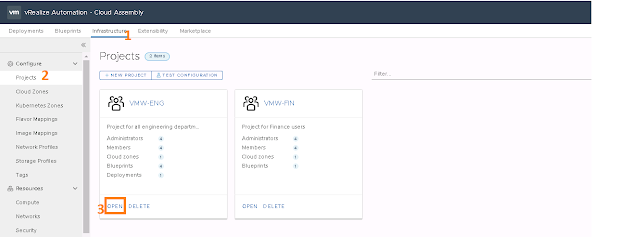
1. Login to vRA Portal > Access Cloud Assembly Service > Infrastructure Tab > Projects > Open an Existing Project/Create New Project
2. Open Provisioning Tab of Project > Add Custom Properties (Names and Values can be anything as per your use case) > Use these custom Properties and default properties in Custom Naming. Like configured in Example Screenshot > Save the Project

3. Now deploy the VM and Check the VM name is per the Custom Naming Configured at the Project

Like | Share | Subscribe

Now if you do not want these kind of names for your VMs, How can this be customized?
1. Login to vRA Portal > Access Cloud Assembly Service > Infrastructure Tab > Projects > Open an Existing Project/Create New Project

2. Open Provisioning Tab of Project > Add Custom Properties (Names and Values can be anything as per your use case) > Use these custom Properties and default properties in Custom Naming. Like configured in Example Screenshot > Save the Project

3. Now deploy the VM and Check the VM name is per the Custom Naming Configured at the Project

Like | Share | Subscribe
Sunday, 1 March 2020
Saturday, 29 February 2020
Cloud Providers and Operating Systems Supported by Cloud-Init and CloudBase-Init
Cloud-Init and CloudBase-Init offers quickest way to customize operating systems. Cloud-Init is for Linux Distributions and CloudBase-Init is for Windows Distributions. Here is link where one can find the list of Cloud Providers and Operating Systems supports these tools.
Cloud-Init
https://cloudinit.readthedocs.io/en/latest/topics/availability.html
CloudBase-Init
https://cloudbase.it/cloudbase-init/
Cloud-Init
https://cloudinit.readthedocs.io/en/latest/topics/availability.html
CloudBase-Init
https://cloudbase.it/cloudbase-init/
Friday, 14 February 2020
VMware vRealize Auotmation 8.0 Deployment Failed - Known Issue
When i was installing vRA 8 in my Test Environment, it was failing again and again. I have tried couple of time but it was failing at same stage then i searched VMware Documentation and Found it is One of Known Issue. Lets see how to fix it:-
1. My installation was getting Failed. Then i logged in to vRealize Lifecycle Manage and have seen this error message

2. I have checked VMware Documentation and find this KB https://kb.vmware.com/s/article/76870?lang=en_US&queryTerm=76870. I followed this KB Step by Step :-
(A) Login to vRA through SSH Client (Example Putty)1. My installation was getting Failed. Then i logged in to vRealize Lifecycle Manage and have seen this error message

2. I have checked VMware Documentation and find this KB https://kb.vmware.com/s/article/76870?lang=en_US&queryTerm=76870. I followed this KB Step by Step :-
kubectl -n prelude get pods
The status of the vco-app pod is CrashLoopBackOff

(B) Confirm the error by running the following command on the appliance:
kubectl -n prelude logs vco-app-<ID from previous command> -c install-rpms
kubectl -n prelude logs vco-app-<ID from previous command> -c install-rpms
You are required to change your password immediately (password expired)
groupadd: PAM: Authentication token is no longer valid; new one required
useradd: group 'vco' does not exist
error: %prein(vco-server-8.1.0.1576591045-15331417.noarch) scriptlet failed, exit status 6
error: vco-server-8.1.0.1576591045-15331417.noarch: install failed

(C) Take the backup of deployment.yaml file by following steps given below

(D) Edit deployment.yaml file. I have used VI editor
vi deployment.yaml
Press "I"
edit the line /init_run.sh = add this "sed -i 's/root:.*/root:x:18135:0:99999:7:::/g' /etc/shadow && sed -i 's/vco:.*/vco:x:18135:0:99999:7:::/g' /etc/shadow &&
"sed -i 's/root:.*/root:x:18135:0:99999:7:::/g' /etc/shadow && sed -i 's/vco:.*/vco:x:18135:0:99999:7:::/g' /etc/shadow && /init_run.sh"
esc:wq

(E) If you are deploying outside of vRealize Suite Lifecycle Manager, follow these steps:
Navigate to /opt/scripts/
Execute the script deploy.sh
Navigate to /opt/scripts/
Execute the script deploy.sh

or
If you are deploying through vRealize Suite Lifecycle Manager, follow these steps:
Log back into Lifecycle Manager and 'Retry' the deployment that failed.
Log back into Lifecycle Manager and 'Retry' the deployment that failed.

Tuesday, 11 February 2020
VMware vRealize Automation 8 - Service Broker - Request Items - Part 5
As a vRealize Automation Service Broker consumer, you deploy a catalog item that was imported from vRealize Automation Cloud Assembly, Amazon Cloud Formation, and other sources so that you can deploy it as part of your work processes.
Configuration Workflow = http://virtualization24x7.blogspot.com/2020/02/vmware-vrealize-automation-8-service.html
Part - 1 = http://virtualization24x7.blogspot.com/2020/02/vmware-vrealize-automation-8-service_11.html
Part - 2 = http://virtualization24x7.blogspot.com/2020/02/vmware-vrealize-automation-8-service_7.html
Part - 3 = http://virtualization24x7.blogspot.com/2020/02/vmware-vrealize-automation-8-service_39.html
Part - 4 = http://virtualization24x7.blogspot.com/2020/02/vmware-vrealize-automation-8-service_0.html
Request Items from Service Catalog in Service Broker
1. Login to vRA = https://vRAFQDNorIP > Click on Service Broker Under Services
2. Catalog Tab > Click on Request

3. Enter the Details > Submit

4. Deployment will be started, You can check the deployment status from deployments tab > Wait for few Minutes

Configuration Workflow = http://virtualization24x7.blogspot.com/2020/02/vmware-vrealize-automation-8-service.html
Part - 1 = http://virtualization24x7.blogspot.com/2020/02/vmware-vrealize-automation-8-service_11.html
Part - 2 = http://virtualization24x7.blogspot.com/2020/02/vmware-vrealize-automation-8-service_7.html
Part - 3 = http://virtualization24x7.blogspot.com/2020/02/vmware-vrealize-automation-8-service_39.html
Part - 4 = http://virtualization24x7.blogspot.com/2020/02/vmware-vrealize-automation-8-service_0.html
Request Items from Service Catalog in Service Broker
1. Login to vRA = https://vRAFQDNorIP > Click on Service Broker Under Services
2. Catalog Tab > Click on Request


4. Deployment will be started, You can check the deployment status from deployments tab > Wait for few Minutes

VMware vRealize Automation 8 - Service Broker - Configure Policies - Part 4
To provide the background management of your deployments, you set up policies. Each vRealize Automation Service Broker policy is a set of rules or parameters that are applied to deployments, freeing the cloud administrator for other tasks.
Any policies that you create in vRealize Automation Service Broker are applied to the deployments in vRealize Automation Service Broker and in vRealize Automation Cloud Assembly.
Configuration Workflow = http://virtualization24x7.blogspot.com/2020/02/vmware-vrealize-automation-8-service.html
Part - 1 = http://virtualization24x7.blogspot.com/2020/02/vmware-vrealize-automation-8-service_11.html
Part - 2 = http://virtualization24x7.blogspot.com/2020/02/vmware-vrealize-automation-8-service_7.html
Part - 3 = http://virtualization24x7.blogspot.com/2020/02/vmware-vrealize-automation-8-service_39.html
Configure Policies in Service Broker
1. Login to vRA = https://vRAFQDNorIP > Click on Service Broker Under Services
2. Content and Policies Tab > Policies > Definitions > New Policy >

3. vRealize Automation Service Broker includes the following policy types.
Lease
You use lease policies to control how long deployments are available to users. For example, you create a policy where all deployments are destroyed after 30 days unless the user extends the lease.
Day 2 actions
You use day 2 actions policies to control what changes users can make to deployments. For example, you create a policy that allows users to power off and power on their deployments.
If NO Day 2 actions policy is created, then all the Day 2 Actions will be available at your Deployment

4. Configure Lease Policy > Create

5. Configure Day-2 Actions Policy > Create

Any policies that you create in vRealize Automation Service Broker are applied to the deployments in vRealize Automation Service Broker and in vRealize Automation Cloud Assembly.
Configuration Workflow = http://virtualization24x7.blogspot.com/2020/02/vmware-vrealize-automation-8-service.html
Part - 1 = http://virtualization24x7.blogspot.com/2020/02/vmware-vrealize-automation-8-service_11.html
Part - 2 = http://virtualization24x7.blogspot.com/2020/02/vmware-vrealize-automation-8-service_7.html
Part - 3 = http://virtualization24x7.blogspot.com/2020/02/vmware-vrealize-automation-8-service_39.html
Configure Policies in Service Broker
1. Login to vRA = https://vRAFQDNorIP > Click on Service Broker Under Services
2. Content and Policies Tab > Policies > Definitions > New Policy >

3. vRealize Automation Service Broker includes the following policy types.
Lease
You use lease policies to control how long deployments are available to users. For example, you create a policy where all deployments are destroyed after 30 days unless the user extends the lease.
Day 2 actions
You use day 2 actions policies to control what changes users can make to deployments. For example, you create a policy that allows users to power off and power on their deployments.
If NO Day 2 actions policy is created, then all the Day 2 Actions will be available at your Deployment

4. Configure Lease Policy > Create

5. Configure Day-2 Actions Policy > Create

VMware vRealize Automation 8 - Service Broker - Configure Content Sharing - Part 3
You can make vRealize Automation Cloud Assembly blueprints available in the vRealize Automation Service Broker catalog by adding a vRealize Automation Cloud Assembly content source and sharing the blueprints.
Configuration Workflow = http://virtualization24x7.blogspot.com/2020/02/vmware-vrealize-automation-8-service.html
Part - 1 = http://virtualization24x7.blogspot.com/2020/02/vmware-vrealize-automation-8-service_11.html
Part - 2 = http://virtualization24x7.blogspot.com/2020/02/vmware-vrealize-automation-8-service_7.html
Configure Content Sharing in Service Broker
1. Login to vRA = https://vRAFQDNorIP
2. Content and Policies Tab > Content Sharing > Select Project > Add > Select Content Source > Save


Configuration Workflow = http://virtualization24x7.blogspot.com/2020/02/vmware-vrealize-automation-8-service.html
Part - 1 = http://virtualization24x7.blogspot.com/2020/02/vmware-vrealize-automation-8-service_11.html
Part - 2 = http://virtualization24x7.blogspot.com/2020/02/vmware-vrealize-automation-8-service_7.html
Configure Content Sharing in Service Broker
1. Login to vRA = https://vRAFQDNorIP
2. Content and Policies Tab > Content Sharing > Select Project > Add > Select Content Source > Save

3. Content will be listed Now (Only Released Blueprints from the Selected Project)

VMware vRealize Automation 8 - Service Broker - Add Content Sources - Part 2
You can make vRealize Automation Cloud Assembly blueprints available in the vRealize Automation Service Broker catalog by adding a vRealize Automation Cloud Assembly content source.
Configuration Workflow = http://virtualization24x7.blogspot.com/2020/02/vmware-vrealize-automation-8-service.html
Part - 1 = http://virtualization24x7.blogspot.com/2020/02/vmware-vrealize-automation-8-service_11.html
Add Content Source in Service Broker for Cloud Assembly Blueprint
1. Login to vRA = https://vRAFQDNorIP > Click on Service Broker Under Services

2. Content and Policies Tab > Content Sources > New

3. Select Type = Cloud Assembly Blueprint, Configure Name and Description, Select Project > Click on Validate > Create and Import

Configuration Workflow = http://virtualization24x7.blogspot.com/2020/02/vmware-vrealize-automation-8-service.html
Part - 1 = http://virtualization24x7.blogspot.com/2020/02/vmware-vrealize-automation-8-service_11.html
Add Content Source in Service Broker for Cloud Assembly Blueprint
1. Login to vRA = https://vRAFQDNorIP > Click on Service Broker Under Services

2. Content and Policies Tab > Content Sources > New

3. Select Type = Cloud Assembly Blueprint, Configure Name and Description, Select Project > Click on Validate > Create and Import

VMware vRealize Automation 8 - Service Broker - Release Blueprint in Cloud Assembly - Part 1
Blueprints that you are importing are deployable and released in vRealize Automation Cloud Assembly before you import it.
Release Blueprint in Cloud Assembly
1. Login to vRA = https://vRAFQDNorIP > Click on Service Broker Under Services
2. Blueprints Tab > Click on Blueprint Name to Edit it > Version Button > Configure Version Number and Description > Select Release this Blueprint to the Catalog > Create

Release Blueprint in Cloud Assembly
1. Login to vRA = https://vRAFQDNorIP > Click on Service Broker Under Services
2. Blueprints Tab > Click on Blueprint Name to Edit it > Version Button > Configure Version Number and Description > Select Release this Blueprint to the Catalog > Create

VMware vRealize Automation 8 - Service Broker - Configuration Workflow
The vRealize Automation Service Broker provides a single point where you can request and manage catalog items.
Configuration Workflow of Service Broker
This is the process used to used Publish Blueprint in Service Catalog

Configuration Workflow of Service Broker
This is the process used to used Publish Blueprint in Service Catalog

Monday, 10 February 2020
VMware vRealize Automation 8 - Cloud Assembly - Blueprints - Part 7
Blueprints are specifications that define virtual machines, applications, and services on cloud resources.
Part - 1 = http://virtualization24x7.blogspot.com/2020/02/vmware-vrealize-automation-8-cloud.html
Part - 2 = http://virtualization24x7.blogspot.com/2020/02/vmware-vrealize-automation-8-cloud_10.html
Part - 3 = http://virtualization24x7.blogspot.com/2020/02/vmware-vrealize-automation-8-cloud_86.html
Part - 4 = http://virtualization24x7.blogspot.com/2020/02/vmware-vrealize-automation-8-cloud_64.html
Part - 5 = http://virtualization24x7.blogspot.com/2020/02/vmware-vrealize-automation-8-cloud_98.html
Part - 6 = http://virtualization24x7.blogspot.com/2020/02/vmware-vrealize-automation-8-cloud_95.html
Create New Blueprint in vRA 8
1. Login to vRA 8 = Https://vRAFQDNorIP
2. Blueprints > New

3. Enter Blueprint Name, Description, Map Project, Configure Blueprint sharing in Service Broker > Create

4. Design Your Blueprint as per the Use-Case

5. Configure the YAML Code as Needed. In this example i have provided image name and mapped the flavor. I have not specified any network portgroup name due to this it will randomly select portgroup for VM connectivity.

6. Test Your Blueprint Configuration by Clicking on Test Button, if test is completed successfully then Deploy VM from it by Clicking Deploy Button

7. Click on Deploy > Enter Deployment Name (Note: This is not VM Name), Blueprint Version and Description > Deploy > It will take few minutes

8. Once VM Deployment is Successfully Completed, you can check VM details from left side area > Close

vRA Resource Type Schema for Blueprints
Part - 1 = http://virtualization24x7.blogspot.com/2020/02/vmware-vrealize-automation-8-cloud.html
Part - 2 = http://virtualization24x7.blogspot.com/2020/02/vmware-vrealize-automation-8-cloud_10.html
Part - 3 = http://virtualization24x7.blogspot.com/2020/02/vmware-vrealize-automation-8-cloud_86.html
Part - 4 = http://virtualization24x7.blogspot.com/2020/02/vmware-vrealize-automation-8-cloud_64.html
Part - 5 = http://virtualization24x7.blogspot.com/2020/02/vmware-vrealize-automation-8-cloud_98.html
Part - 6 = http://virtualization24x7.blogspot.com/2020/02/vmware-vrealize-automation-8-cloud_95.html
Create New Blueprint in vRA 8
1. Login to vRA 8 = Https://vRAFQDNorIP
2. Blueprints > New

3. Enter Blueprint Name, Description, Map Project, Configure Blueprint sharing in Service Broker > Create

4. Design Your Blueprint as per the Use-Case

5. Configure the YAML Code as Needed. In this example i have provided image name and mapped the flavor. I have not specified any network portgroup name due to this it will randomly select portgroup for VM connectivity.

6. Test Your Blueprint Configuration by Clicking on Test Button, if test is completed successfully then Deploy VM from it by Clicking Deploy Button

7. Click on Deploy > Enter Deployment Name (Note: This is not VM Name), Blueprint Version and Description > Deploy > It will take few minutes

8. Once VM Deployment is Successfully Completed, you can check VM details from left side area > Close

vRA Resource Type Schema for Blueprints
VMware vRealize Automation 8 - Cloud Assembly - Image Mapping - Part 6
A vRealize Automation Cloud Assembly image map is where you use natural language to define target deployment operating systems for a specific cloud account/region.
Part - 1 = http://virtualization24x7.blogspot.com/2020/02/vmware-vrealize-automation-8-cloud.html
Part - 2 = http://virtualization24x7.blogspot.com/2020/02/vmware-vrealize-automation-8-cloud_10.html
Part - 3 = http://virtualization24x7.blogspot.com/2020/02/vmware-vrealize-automation-8-cloud_86.html
Part - 4 = http://virtualization24x7.blogspot.com/2020/02/vmware-vrealize-automation-8-cloud_64.html
Part - 5 = http://virtualization24x7.blogspot.com/2020/02/vmware-vrealize-automation-8-cloud_98.html
Create New Image Mapping in vRA 8
1. Login to vRA 8 = Https://vRAFQDNorIP
2. Infrastructure Tab > Configure > Image Mappings > New Image Mapping

3. Configure Image Name, Cloud Account, Select Image from Selected Cloud Account > Click on Create

4. Once Image Mapping is Created, It will be listed in Image Mappings

Part - 1 = http://virtualization24x7.blogspot.com/2020/02/vmware-vrealize-automation-8-cloud.html
Part - 2 = http://virtualization24x7.blogspot.com/2020/02/vmware-vrealize-automation-8-cloud_10.html
Part - 3 = http://virtualization24x7.blogspot.com/2020/02/vmware-vrealize-automation-8-cloud_86.html
Part - 4 = http://virtualization24x7.blogspot.com/2020/02/vmware-vrealize-automation-8-cloud_64.html
Part - 5 = http://virtualization24x7.blogspot.com/2020/02/vmware-vrealize-automation-8-cloud_98.html
Create New Image Mapping in vRA 8
1. Login to vRA 8 = Https://vRAFQDNorIP
2. Infrastructure Tab > Configure > Image Mappings > New Image Mapping

3. Configure Image Name, Cloud Account, Select Image from Selected Cloud Account > Click on Create

4. Once Image Mapping is Created, It will be listed in Image Mappings

VMware vRealize Automation 8 - Cloud Assembly - Flavor Mapping - Part 5
A vRealize Automation Cloud Assembly flavor map is where you use natural language to define target deployment sizes for a specific cloud account/region.
Flavor maps express the deployment sizes (T-Shirt Sizing) that make sense for your environment. For Example Small, Medium or Large.
Part - 1 = http://virtualization24x7.blogspot.com/2020/02/vmware-vrealize-automation-8-cloud.html
Part - 2 = http://virtualization24x7.blogspot.com/2020/02/vmware-vrealize-automation-8-cloud_10.html
Part - 3 = http://virtualization24x7.blogspot.com/2020/02/vmware-vrealize-automation-8-cloud_86.html
Part - 4 = http://virtualization24x7.blogspot.com/2020/02/vmware-vrealize-automation-8-cloud_64.html
Create New Flavor Mapping in vRA 8
1. Login to vRA 8 = Https://vRAFQDNorIP
2. Infrastructure Tab > Configure > Flavor Mappings > New Flavor Mapping

3. Configure Flavor Name, Select Cloud Account , CPU and Memory Sizing > Create

4. Flavor Will be Listed in Flavor Mappings Once Created

Flavor maps express the deployment sizes (T-Shirt Sizing) that make sense for your environment. For Example Small, Medium or Large.
Part - 1 = http://virtualization24x7.blogspot.com/2020/02/vmware-vrealize-automation-8-cloud.html
Part - 2 = http://virtualization24x7.blogspot.com/2020/02/vmware-vrealize-automation-8-cloud_10.html
Part - 3 = http://virtualization24x7.blogspot.com/2020/02/vmware-vrealize-automation-8-cloud_86.html
Part - 4 = http://virtualization24x7.blogspot.com/2020/02/vmware-vrealize-automation-8-cloud_64.html
Create New Flavor Mapping in vRA 8
1. Login to vRA 8 = Https://vRAFQDNorIP
2. Infrastructure Tab > Configure > Flavor Mappings > New Flavor Mapping

3. Configure Flavor Name, Select Cloud Account , CPU and Memory Sizing > Create

4. Flavor Will be Listed in Flavor Mappings Once Created

VMware vRealize Automation 8 - Cloud Assembly - Projects - Part 4
Projects in vRA 8 controls who has access to vRealize Automation Cloud Assembly blueprints and where the blueprints are deployed. You use projects to organize and govern what your users can do and to what cloud zones they can deploy blueprints in your cloud infrastructure.
Cloud administrators set up the projects, to which they can add users and cloud zones. Anyone who creates and deploys blueprints must be a member of at least one project.
Part - 1 = http://virtualization24x7.blogspot.com/2020/02/vmware-vrealize-automation-8-cloud.html
Part - 2 = http://virtualization24x7.blogspot.com/2020/02/vmware-vrealize-automation-8-cloud_10.html
Part - 3 = http://virtualization24x7.blogspot.com/2020/02/vmware-vrealize-automation-8-cloud_86.html
Create New Project in vRA 8
1. Login to vRA 8 = Https://vRAFQDNorIP
2. Infrastructure Tab > Configure > Projects > New Project

3. Summary Tab > Configure Project Name and Description

4. Users Tab > Add User Groups > Assign Project Administrator and Member Role to User Groups > Add

5. Project Admins and Members will be listed in Users Tab

6. Provisioning Tab > Click on Add Cloud Zone to Map Cloud Zone with Project > Select Cloud Zone > Add

7. Configure Kubernetes details in Kubernetes Provisioning Tab, if needed > Create

8. Project once created will be listed in Projects

Cloud administrators set up the projects, to which they can add users and cloud zones. Anyone who creates and deploys blueprints must be a member of at least one project.
Part - 1 = http://virtualization24x7.blogspot.com/2020/02/vmware-vrealize-automation-8-cloud.html
Part - 2 = http://virtualization24x7.blogspot.com/2020/02/vmware-vrealize-automation-8-cloud_10.html
Part - 3 = http://virtualization24x7.blogspot.com/2020/02/vmware-vrealize-automation-8-cloud_86.html
Create New Project in vRA 8
1. Login to vRA 8 = Https://vRAFQDNorIP
2. Infrastructure Tab > Configure > Projects > New Project

3. Summary Tab > Configure Project Name and Description

4. Users Tab > Add User Groups > Assign Project Administrator and Member Role to User Groups > Add

5. Project Admins and Members will be listed in Users Tab

6. Provisioning Tab > Click on Add Cloud Zone to Map Cloud Zone with Project > Select Cloud Zone > Add

7. Configure Kubernetes details in Kubernetes Provisioning Tab, if needed > Create

8. Project once created will be listed in Projects

Subscribe to:
Posts (Atom)