Translate

Total Pageviews

My YouTube Channel

Monday, 7 September 2015

vCenter Server 6 Deployment Topologies and High Availability

Architectural changes to vSphere 6:

vCenter Server 6 has some fundamental architectural changes compared to vCenter Server Server 5.5. The multitude of components that existed in vCenter Server 5.x has been consolidated in vCenter Server 6 to have only two components vCenter Management Server and Platform Services Controller, formerly vCenter Server Single Sign-On.
The Platform Services Controller (PSC) provides a set of common infrastructure services encompassing
  • Single Sign-On (SSO)
  • Licensing
  • Certificate Authority
The vCenter Management Server consolidates all the other components such as Inventory Service & Web Client services along with its traditional management components. The vCenter Server components can be typically deployed in with either embedded or external PSC. Care should be taken to understand the critical differences between the two deployment models. Once deployed one cannot move from one mode to another in this version.

Deployment Models:

vCenter Server with Embedded PSC:

The embedded PSC is meant for standalone sites where vCenter Server will be the only SSO integrated solution. In this case a replication to another PSC is not necessary.
  • Sufficient for most environments. Easiest to deploy and maintain
  • Aimed at minimizing fault domains. Use in conjunction with only one of VMware Product or Solution.
  • Multiple standalone instances supported
  • Replication between embedded instances not supported
  • Supports Windows & Appliance

VC6_fig1


Figure 1: Embedded mode vCenter Server 6

vCenter Server with External PSC:

In this configuration the PSC is external to the vCenter Server. This configuration allows multiple  vCenter Servers to link to a PSC.
  • Recommend this if deploying/growing to multiple vCenter Server instances that need to be linked
  • Reduces footprint by sharing Platform Services Controller across several vCenter Servers
  • Deploy more than one PSC to provide resilience within the environment
  • Supports Windows & Appliance

VC6_fig2

Figure 2: vCenter Server 6 with External PSC

Options available for vCenter Server failure protection:

Backup (VDP / Third Party VADP):

vCenter Server deployed in embedded mode can be backed up with VDP or third party backup software that leverage VADP. Currently there is no simple mechanism available to backup the PSC when is external to the vCenter Server. Multiple instances of PSC should be leveraged to protect against an individual external PSC failure.

VMware HA

Majority of the customers have virtualized their vCenter server and leverage VMware HA to protect against Hardware failure.  VMware HA can also protect against guest OS failure through the use of heartbeat and watchdog services.
Third Party Solutions that layer on top of VMware HA:
Third party solutions like Symantec ApplicationHA layer on top of VMware HA and can also monitor and restart vCenter services in the event of any failure. Using a solution like Symantec ApplicationHA, one can monitor all of the  components of vCenter server. In the event it is unable to resolve issues by restarting services, it interacts VMware HA to reset the virtual machine. Symantec ApplicationHA has a specific agent for vCenter agent that helps monitor and protect all aspects of vCenter.

VMware SMP-FT

With the release of vSphere 6, SMP Fault tolerance is available for up to 4 vCPU. This can also protect against hardware failure, but is applicable only to vCenter Server instances that can fit within the 4 vCPU virtual machine size.  Any application failure is not protected by SMP-FT.

Database Clustering:

For vCenter servers backed by Microsoft SQL databases, SQL clustering can be leveraged to provide reduced downtime for unplanned events and for OS patching.
Platform Service Controller
Multiple External PSC instances can be used for a single site to service one or more vCenter servers. A load balancer is required to frontend the PSC instances. The PSC instances replicate state information between each other.

vCenter Server High Availability:

With vCenter Server 5.5 Update 3 and later, Windows Server Failover Cluster is supported as an option for providing vCenter Server availability. Two instances of vCenter Server are in a MSCS cluster, but only one instance is active at a time. VMware only supports 2 node clusters.

Use cases for this solution:

  • This solution helps reduce downtime for maintenance operations, such as patching or upgrades, on one node in the cluster without taking down the vCenter Server database.
  • Another potential benefit of this approach is that MSCS uses a type of “shared-nothing” cluster architecture. The cluster does not involve concurrent disk accesses from multiple nodes. In other words, the cluster does not require a distributed lock manager. MSCS clusters typically include only two nodes and they use a shared SCSI connection between the nodes. Only one server needs the disks at any given time, so no concurrent data access occurs. This sharing minimizes the impact if a node fails.
  • Unlike the vSphere HA cluster option, the MSCS option works only for Windows virtual machines and does not support the vCenter Server Appliance.
  •  Before you can set up MSCS for vCenter Server availability, you must create a virtual machine with one of the following guest operating systems:
    • Windows 2008 SP2
    • Windows 2012 R2 Datacenter
    Additionally, you must add two RDM disks to this VM. These disks must be mounted and when they are added, you must create a separate SCSI controller with the bus sharing option set to physical. The RDM disks must also be independent and persistent.
    In this configuration all vCenter Server services can be protected individually. The backend Microsoft SQL database can also be protected separately with SQL Clustering.

VC6_fig3

Figure 3: Clustering based high availability for Windows based vCenter Server

Deployment Modes for vCenter Server:

Local vCenter Server & PSX High Availability:

  • This model protects the platform service controller service by having multiple instances of PSC locally behind a load balancer. Failure of a PSC does not impact the usage of the infrastructure. The PSCs should also be separated from each other physically using anti-affinity rules. The PSCs replicate state information vCenter Server nodes are individually clustered with WSFC for HA. The  vCenter Servers interact with the PSCs through a load balancer.

VC6_fig4

Figure 4: Local vCenter and PSC high availability

Multiple Site vCenter Server and PSC basic Architecture:

In this configuration each site is independent with PSC replication between sites. The vCenter Server is aware of the site topologies and use the local PSC under normal circumstances. Customers are able to seamlessly move the vCenter Servers between PSCs when necessary. This topology allows for Enhanced Linked Mode (ELM) which is facilitated by the PSC. Enhanced Linked Mode provides for a single point of management for all vCenter Servers in the same vSphere domain. In vSphere 6 the Windows-based and Virtual Appliance-based vCenter Servers have the same operational maximums and can belong to the same linked mode configuration. The configuration replicates all license, global permissions, tags and roles across all sites.
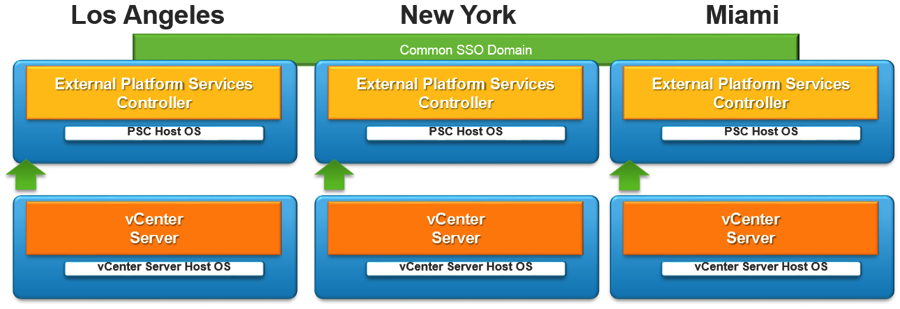
VC6_fig5

Figure 5: Multi-site vCenter Server and PSC basic architecture

Multiple Site vCenter Server & PSC with High Availability Architecture:

Combining the high availability configuration in a local site with the multi site configuration. Each site is populated with at least two PSCs for high availability. vCenter Server nodes are individually clustered with WSFC for HA.

VC6_fig6

Figure 6: Multi-site vCenter Server and PSC high availability architecture

Conclusion:

vCenter Server 6 has a new deployment architecture. In this blog we have discussed the deployment modes for vCenter Server based on different requirements. The modes of deployment can go from a minimal local deployment to a multi site high availability deployment. There are many high availability options available for vCenter Server and one can mix and match these based on customer requirements.
Source:-
https://blogs.vmware.com/vsphere/2015/03/vcenter-server-6-topology-ha.html#more-16544?src=vmw_so_vex_ragga_1012

Best practices to install or upgrade to VMware ESXi 6.0 (2109712)

Purpose

This article provides best practices to install or upgrade to VMware ESXi 6.0.

This article assumes that:

Resolution

ESXi 6.0 System Requirements

When installing or upgrading to ESXi 6.0, ensure that the host meets these minimum hardware configurations supported by ESXi 6.0:

  1. Compatible hardware: Ensure your hardware is compliant on the VMware Compatibility Guide. This includes:

    • System compatibility
    • I/O compatibility (Network and HBA cards)
    • Storage compatibility
    • Backup software compatibility
  2. Compatible CPU: Your hosts must have a supported and compatible processor. VMware ESXi 6.0 requires:

    • A host with 2 or more CPU cores.
    • A 64-bit x86 processor released after September 2006. For a complete list of supported processors, see the VMware Compatibility Guide.
    • The NX/XD bit for the CPU must be enabled in the host BIOS.
    • To support 64-bit virtual machines, support for hardware virtualization (Intel VT-x or AMD RVI) must be enabled on x64 CPUs.

      Note: To determine whether your server has 64-bit VMware support, download the CPU Identification Utility from the VMware Website.
  3. Sufficient memory: Your hosts must have at least 4 GB of RAM, 8 GB of RAM is recommended to take advantage of all features and run virtual machines in a typical production environment.
  4. Sufficient network adapters: Your host has one or more Gigabit or faster Ethernet controllers. For a list of supported network adapter models, see the VMware Compatibility Guide.


ESXi 6.0 Booting Requirements

vSphere 6.0 supports booting ESXi hosts from the Unified Extensible Firmware Interface (UEFI). With UEFI, you can boot systems from hard drives, CD-ROM drives, or USB media. Network booting or provisioning with VMware Auto Deploy requires the legacy BIOS firmware and is not available with UEFI BIOS configurations.

Notes:
  • Changing the host boot type between legacy BIOS and UEFI is not supported after you install ESXi 6.0. Changing the boot type from legacy BIOS to UEFI after you install ESXi 6.0 might cause the host to fail to boot. The host displays an error message similar to:

    Not a VMware boot bank
  • ESXi can boot from a disk larger than 2 TB provided that the system firmware and the firmware on any add-in card that you are using supports it. Check your hardware documentation.


Storage requirements

ESXi 6.0 has these storage requirements:
  • 1 Gigabyte+ boot device: Installing or upgrading to ESXi 6.0 requires a minimum of a 1 GB boot device.

    Note: Although a 1 GB USB or SD device suffices for a minimal installation, you should use a 4 GB or larger device. The extra space is used for an expanded coredump partition on the USB/SD device.
  • 4 GB extra for scratch partition: When booting from a local disk, a SAN or an iSCSI LUN, a 5.2 GB disk is required to allow for the creation of the VMFS volume and a 4 GB scratch partition on the boot device.

    • If a smaller disk or LUN is used, the installer attempts to allocate a scratch region on another available local disk. If no local disk can be found to serve as a scratch partition, /scratch is located on the ESXi host ramdisk, linked to /tmp/scratch. You can later reconfigure /scratch to use a separate disk or LUN.
    • Due to the I/O sensitivity of USB and SD devices the installer does not create a scratch partition on these devices. Again, the host attempts to configure the /scratch on an available local disk, if no local disk is available it is placed on the ramdisk.
    • For environments that boot from a SAN or use Auto Deploy, it is not necessary to allocate a separate LUN for each ESXi host. You can co-locate the scratch regions for many ESXi hosts onto a single LUN. The number of hosts assigned to any single LUN should be weighed against the LUN size and the I/O behavior of the virtual machines.
    • For best performance and memory optimization, do not leave the /scratch partition configured to use the ramdisk. To reconfigure /scratch, see the Set the Scratch Partition from the vSphere Web Client section in the vSphere Installation and Setup Guide.


Best practices for upgrading or migrating ESXi hosts

For a successful upgrade or migration, perform these best practices:
  1. If your vSphere system includes VMware solutions or plug-ins, ensure that they are compatible with the vCenter Server version that you are upgrading to. For more information, see the VMware Product Interoperability Matrix.
  2. If you are upgrading multiple VMware solutions, review this article, to ensure you update them in the correct order: Update sequence for vSphere 6.0 and its compatible VMware products (2109760).
  3. Read the Before You Install ESXi section in the vSphere Installation and Setup Guide.
  4. Read the VMware vSphere Release Notes for awareness of any known installation issues.
  5. If the ESXi hosts are part of a VMware Virtual SAN cluster, carefully review the Upgrading the Virtual SAN Cluster section in the VMware Virtual SAN 6.0 Documentation.

To prepare your system for the upgrade:
  1. Check if the version of ESXi or ESX you are currently running is supported for migration or upgrade. For more information, see theSupported Upgrades to ESXi 6.0 section in the vSphere Upgrade Guide.
  2. Check the VMware Compatibility Guide to ensure that your host hardware is tested and certified as compatible with the new version of ESXi. Check for system compatibility, I/O compatibility (network and HBA cards), and storage compatibility.

    Note: It is not recommended to upgrade a host with hardware that is not certified for use with ESXi 6.0. If your host model is not on the VMware Compatibility guide, VMware recommend you contact your hardware vendor, and check if they plan to support your hardware devices on ESXi 6.0.
  3. Ensure that sufficient disk space is available on the host for the upgrade or migration. VMware recommend a minimum of 50 MB free disk space on the installation disk of the host you are upgrading.
  4. If you use remote management software to interact with your hosts, ensure that the software is supported and the firmware version is sufficient. For more information, see the Supported Remote Management Server Models and Firmware Versions section in thevSphere Upgrade Guide.
  5. If a Fiber Channel SAN is connected to the host, detach the fiber connections before continuing with the upgrade or migration. Do not disable HBA cards in the BIOS.
  6. Ensure you have sufficient access to VMware product licenses to assign a vSphere 6.0 license to the hosts post upgrade. After the upgrade, you can use evaluation mode for 60 days. For more information, see the Applying Licenses After Upgrading to ESXi 6.0section in the vSphere Upgrade Guide.
  7. Back up the host before performing an upgrade. If the upgrade fails, you can restore the host.
Source:-
http://kb.vmware.com/selfservice/microsites/search.do?language=en_US&cmd=displayKC&externalId=2109712&src=vmw_so_vex_ragga_1012

Saturday, 5 September 2015

VM Component Protection (VMCP) - vSphere 6 HA New Feature

vSphere 6.0 introduces a powerful new feature as part of vSphere HA called VM Component Protection (VMCP). VMCP protects virtual machines from storage related events, specifically Permanent Device Loss (PDL) and All Paths Down (APD) incidents.
Permanent Device Loss (PDL)
A PDL event occurs when the storage array issues a SCSI sense code indicating that the device is unavailable. A good example of this is a failed LUN, or an administrator inadvertently removing a WWN from the zone configuration. In the PDL state, the storage array can communicate with the vSphere host and will issue SCSI sense codes to indicate the status of the device. When a PDL state is detected, the host will stop sending I/O requests to the array as it considers the device permanently unavailable, so there is no reason to continuing issuing I/O to the device.
All Paths Down (APD)
If the vSphere host cannot access the storage device, and there is no PDL SCSI code returned from the storage array, then the device is considered to be in an APD state. This is different than a PDL because the host doesn’t have enough information to determine if the device loss is temporary or permanent. The device may return, or it may not. During an APD condition, the host continues to retry I/O commands to the storage device until the period known as the APD Timeout is reached. Once the APD Timeout is reached, the host begins to fast-fail any non-virtual machine I/O to the storage device. This is any I/O initiated by the host such as mounting NFS volumes, but not I/O generated within the virtual machines. The I/O generated within the virtual machine will be indefinitely retried. By default, the APD Timeout value is 140 seconds and can be changed per host using the Misc.APDTimeoutadvanced setting.
VM Component Protection (VMCP)
vSphere HA can now detect PDL and APD conditions and respond according to the behavior that you configure. The first step is to enable VMCP in your HA configuration. This settings simply informs the vSphere HA agent that you wish to protect your virtual machines from PDL and APD events. In the spirit of keeping things dead simple, it’s as easy as a clicking a checkbox. To see for yourself, head on over to the Feature Walkthrough site and see just how simple this really is.
Cluster Settings -> vSphere HA -> Host Hardware Monitoring – VM Component Protection -> Protect Against Storage Connectivity Loss.
Configure VMCP
The next step is configuring the way you want vSphere HA to respond to PDL and ADP events.  Each type of event can be configured independently.  These settings are found on the same window that VMCP is enabled by expanding the Failure conditions and VM response section.
Configure VMCP
Response for Datastore with Permanent Device Loss (PDL)
There are three actions that can be taken in response to a PDL event. These choices are pretty simple since a PDL event is black and white.
Disabled – No action will be taken to the affected VMs.
Issue events – No action will be taken against the affected VMs, however the administrator will be notified when a PDL event has occurred.
Power off and restart VMs – All affected VMs will be terminated on the host and vSphere HA will attempt to restart the VMs on hosts that still have connectivity to the storage device.
Response for Datastore with All Paths Down (APD)
There are few more options available for an APD response. This is because the device state is unknown and may only be temporarily unavailable.
Disabled – No Action will be taken to the affected VMs.
Issue events – No action will be taken against the affected VMs, however the administrator will be notified when an APD event has occurred.
Power off and restart VMs (conservative) – vSphere HA will not attempt to restart the affected VMs unless it has determined there is another host that can restart the VMs. The host experiencing the APD will communicate with the HA master to determine if there is sufficient capacity to power on the affected workloads. If the master determines there is sufficient capacity, the host experiencing the APD will terminate the VMs so they can be restarted on a healthy host. If the host experiencing the APD cannot communicate with the vSphere HA master, no action will be taken.
Power off and restart VMs (aggressive) – vSphere HA will terminate the affected VMs even if it cannot determine that another host can restart the VMs. The host experiencing the APD will attempt communicate with the HA master to determine if there is sufficient capacity to power on the affected workloads. If the HA master is not reachable, it will be unknown if there is sufficient capacity available to restart the VMs. In this scenario, the host takes the risk and terminates the VMs so they can be restarted on the remaining healthy hosts. However, if there is not sufficient capacity available, vSphere HA may not be able to recover all of the affected VMs. This is common in a network partition scenario where a host cannot communicate with the HA master to get a definitive response to the likelihood of a successful recovery.
Delay for VM failover for APD
Once the APD Timeout has been reached (default: 140 seconds) VMCP will wait an additional period of time before taking action against the affected VMs. By default, the waiting period is 3 minutes. In other words, VMCP will wait 5m:20s before taking action against VMs. The sum of the APD Timeout and the Delay for VM Failover is also known as the VMCP Timeout.
Response for APD recovery after APD timeout
This setting will instruct vSphere HA to take a certain action if an APD event is cleared after the APD timeout was reached but before the Delay for VM failover has been reached.
Disabled – No action will be taken against the affected VMs.
Reset VMs – The VMs will be reset on the same host. (Hard reset)
This option is available because some applications or guest operating systems may be in an unstable condition after losing connection with storage services for an extended period of time. This setting will instruct vSphere HA how to handle this situation.
VMCP Recovery Workflow
Figure 1. VMCP Recovery Workflow
VMCP Recovery Timeline
Figure 2. VMCP Recovery Timeline
T=0s: A storage failure is detected. VMCP will start the recovery workflow.
T=0s: For a PDL event, the recovery process immediately starts. VMs will be restarted on healthy hosts in the cluster.
T=0s: For an APD condition, the APD Timeout timer starts.
T=140s: The host declares an APD Timeout and will begin to fast fail non-virtual machine I/O to the unresponsive storage device. By default, this is 140 seconds.
T=320s: The VMCP Timeout.  This is 3 minutes after the APD Timeout has been reached. vSphere HA will start the APD recovery response.
T=140s-T=320s: The period after an APD Timeout, but before the VMCP Timeout. VMs may become unstable after losing access to storage for an extended period of time. If an APD is cleared in this time period, the option to reset the VMs is available.
Summary
VMCP is a long-awaited feature that provides protection against datastore accessibility failures that affect the virtual machines running on a host in a vSphere HA cluster. Hopefully this article will help explain the various configuration options available that are appropriate for your specific environment.
Source:-
https://blogs.vmware.com/vsphere/2015/06/vm-component-protection-vmcp.html?src=vmw_so_vex_ragga_1012

Changes in Object Names in vCAC 6.x as compared to vCAC 5.x a.k.a vRA

There are many changes in vCAC 6.x as compared to vCAC 5.x. List given below is only for the object name changes those are present in these two versions:-


1. Group Name Changes:-


2. Role Name Changes:-
Source of the Info:-
http://pubs.vmware.com/vra-62/topic/com.vmware.ICbase/PDF/vrealize-automation-62-migrating.pdf

Tuesday, 1 September 2015

vCenter Server 6 Scalability Enhancements

vCenter Server Appliance now has the same scalability numbers as the Windows installable vCenter Server: 1,000 hosts and 10,000 virtual machines. This is supported with the embedded PostgreSQL database or an external Oracle Database. This enables organizations to choose the platform that is best for them without sacrificing vCenter Server performance.

\
 

Source: VMware Docs

New Hardware Version Options Available in vSphere Client in version 6

For vSphere Client Lovers their is good news that now they can create their VM with Hardware Version 9, 10 & 11 from vSphere Client in vSphere 6. Here is the screenshot:-


Thursday, 6 August 2015

VCA and VCP Retirements Coming in September, November


With the release of the new VMware Certified Associate 6 (VCA6) and VMware Certified Professional 6 (VCP6) exams and certifications, we are announcing the retirement of several older exams and certifications in the coming months.
September 30, 2015 Retirements
  • VCAC510: VMware Certified Associate – Cloud (VCA-Cloud) Exam and Certification
  • VCAW510: VMware Certified Associate – Workforce Mobility (VCA-WM) Exam and Certification
November 30, 2015 Retirements
  • VCAD510: VMware Certified Associate – Data Center Virtualization (VCA-DCV) Exam and Certification
  • VCAN610: VMware Certified Associate – Network Virtualization (VCA-NV) Exam and Certification
  • VCP510: VMware Certified Professional – Data Center Virtualization (VCP5-DCV) Exam
    Note: You can still earn VCP5-DCV Certification by passing the VCP550 exam. There is no planned retirement date for that exam at this time. 
  • VCPD510: VMware Certified Professional 5 – Desktop (VCP5-DT) Exam and Certification
  • VCP510-DT: VMware View Exam
  • VCPC610: VMware Certified Professional – Cloud (VCP6-Cloud) Exam and Certification
  • VCPD610: VMware Certified Professional 6 – Desktop (VCP6-DT) Exam and Certification
  • VCPN610: VMware Certified Professional – Network Virtualization (VCP-NV) Exam and Certification
If you already hold one of the retiring VCP certifications, it will remain as active on your transcript as long as you recertify every two years (see the recertification policy for details). VCA certifications are not subject to recertification.

Source:-
http://blogs.vmware.com/education/2015/08/vca-vcp-exam-retirements-coming-september-november.html