Translate

Total Pageviews

My YouTube Channel

Monday, 25 July 2016

vSphere 6 Lockdown Modes

As with vSphere 6 there are two types lockdown modes:- Normal and strict lockdown modes. So what is the difference in these lockdown modes. Checkout this Excellent VMware Blog Article by Mike Foley https://blogs.vmware.com/vsphere/2015/03/vsphere-6-0-lockdown-modes.html


Saturday, 23 July 2016

Extrasphere: how to perform storage/host vmotion without vCenter

Credit of all the great work goes to Extrasphere App developers. I am sharing their video here. If you want to watch it you can directly watch it at youtube and link is https://www.youtube.com/watch?v=o3yio4QjPy0


Tuesday, 19 July 2016

vSphere 6 Fault Tolerance(FT)

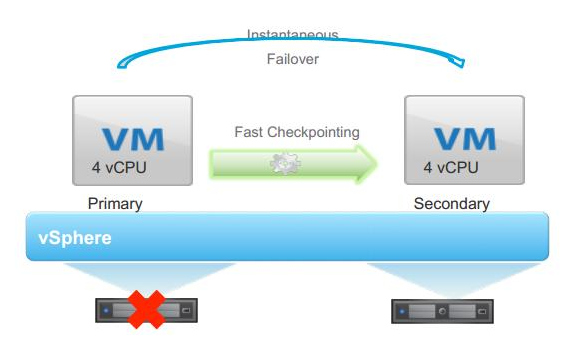
FT is one of feature in HA Cluster that provides zero downtime, but due to its limitations till vSphere 5.5 the use cases for this was also limited. But with vSphere 6 a lot of changes have been made in this  feature to overcome from its limitations.


Why one should use FT?
  • Continuous Availability with zero downtime and zero data loss.
  • Transparent to Guest OS
  • It does not depend on Guest OS and Application
  • Instantaneous failover from Primary to Secondary VM in case of ESXi Host Failure.

Enhancements in vSphere 6 FT
  • Supports for Up to 4 vCPUs and 64 GB RAM
  • Supports vMotion of both Primary and Secondary VM
  • Supports backup of FT VMs by using VADP like EMC, HP etc.
  • Replaced "Record and Replay" with Fast Check-Pointing
  • Supports thin, thick eager-zeroed and thick lazy zeroed
  • Separate File Copies for Primary and Secondary VMs like .vmx, .vmdk etc. and both can be on difference datastores. 
Use Cases of FT?
  • Applications that needs to available all the times
  • Custom Applications those do not have their own HA Solution
  • Custom Application those do have their HA Solution but that is too much complicated to configure
  • On-Demand FT
Requirements for FT?
  • Intel Sandy Bridge or Later (Avoton is not supported)
  • AMD Bulldozer or later
  • 10 Gbps FT logging network
Limits?

  • The maximum number of vCPUs aggregated across all fault tolerant VMs on a host. vCPUs from both Primary VMs and Secondary VMs count toward this limit. The default value is 8.
  • The maximum number of fault tolerant VMs allowed on a host in the cluster. Both Primary VMs and Secondary VMs count toward this limit. The default value is 4.
Shared Files in vSphere 6 FT?
FT has shared files:-
.shared.vmft = Prevents UUID Change.Which is found on a shared datastore, is the vSphere Fault Tolerance metadata file and contains the primary and secondary instance UUIDs and the primary and secondary vmx paths.
.ftgeneration = Is for split-brain condition. This attempt succeeds if the virtual machines remain running on the isolated or partitioned host and that host lost access to the virtual machines’ datastores when it became isolated or partitioned. A split-brain condition exists because there are two instances of the virtual machine. The .ftgeneration file ensures that only one instance of the virtual machine can read from or write to the virtual machine's virtual disks.

Licensing? 
Number of vCPUs supported by single FT enabled VM is limited by level of licensing
  • vSphere Standard or Enterprise Edition = Max. 2 vCPUs
  • vSphere Enterprise Plus = Max. 4 vCPUS
Features Not Supported for FT VMs?

When configuring your cluster, you should be aware that not all vSphere features can interoperate with Fault Tolerance.  
The following vSphere features are not supported for fault tolerant virtual machines.
  • Storage vMotion. You cannot invoke Storage vMotion for virtual machines with Fault Tolerance turned on. To migrate the storage, you should temporarily turn off Fault Tolerance, and perform the storage vMotion action. When this is complete, you can turn Fault Tolerance back on. 
  • Linked clones. You cannot use Fault Tolerance on a virtual machine that is a linked clone, nor can you create a linked clone from an FT-enabled virtual machine.
  • VM Component Protection (VMCP). If your cluster has VMCP enabled, overrides are created for fault tolerant virtual machines that turn this feature off.
  • Virtual Volume datastores.
  • Storage-based policy management.
  • I/O Filters
  • Snapshots. Snapshots must be removed or committed before Fault Tolerance can be enabled on a virtual machine. In addition, it is not possible to take snapshots of virtual machines on which Fault Tolerance is enabled.

Sunday, 17 July 2016

Take a tour of new vmware.com website

As when i accessed the VMware site today i experienced complete new VMware.com web page. Take a tour of new vmware.com website today. To experience it click on this link > http://www.vmware.com/in.html


Instant Clone is Introduced in Horizon View 7

Last week, when i was doing hands on Horizon View 7 i noticed VMware added most awaited feature "Instant Clones or VM Fork"  in this version. Now i when started exploring this feature i saw this post on blogs.vmware.com and thought of sharing it with everyone. Not everyone is using twitter or facebook, so thought of sharing it here:-

http://blogs.vmware.com/euc/2016/02/horizon-7-view-instant-clone-technology-linked-clone-just-in-time-desktop.html?vmw_so_vex_ragga_1012

Some other links:-
https://virtualizationreview.com/articles/2016/03/24/how-to-use-vmware-instant-clone-setup-and--installation.aspx

https://virtualizationreview.com/articles/2016/04/14/how-to-use-vmware-instant-clone%C2%A0deploying-desktops.aspx

Saturday, 25 June 2016

Virtual SAN delivers Enterprise Level Availability

Install App Volumes Agent Software in a VM - Part 4

Now after the installation of App Volumes Manager and Initial Configuration of App Volumes Manager next task is to Install App Volumes Agent Software in a VM that will be used to provision App Stacks.

Part 1
Part 2
Part 3

1. Trigger the Installation of App Volumes Agent  and Click on Next


2. Accept the License Agreement and click on Next


3. Select Install App Volumes Agent and Click on Install


4. Click on Next at Installation Wizard


5. Provide App volumes manager address and port number. Click on Next


6. Click on Install


 7. Wait for the installation to be completed


8. Click on Finish


9.   Verify that the machine name where you installed the agent the agent is listed in the app volumes manager


Tuesday, 21 June 2016

Initial Configuration of App Volumes Manager - Part 3

After the installation of app volumes manager and before creating the app stacks and writable volumes you need to configure startup parameters of app volumes manager.
For Part1 and Part 2

1. Double click on App Volumes Manager Desktop shortcut to launch the web interface

2.  Click on Get Started Button


3. Click on Edit button to upload new license key


4. Click on browse to select the license file and then click on upload


5. Review the License Details and click on next


6. Provide the Active directory information as this is needed to assign application to users, groups and OUs


7. Click on search to search AD groups and select and right group from drop down and then click on next


8. Configure the machine manager like vCenter Server i configured in this example and click on next


9. Verify the details of your machine manager and click on next


10.  Select the datastore and storage path for the app stacks and writable volumes and click on next.


11. Click on Set Defaults


12. Provide your esxi host details who can access the datastores selected in the above steps, it is needed to convert these volumes in to the thin format and click on upload.


13. Confirm Upload and finally click on the upload button


 14. Review the summary and click on next.


Monday, 20 June 2016

VMware App Volumes Manager Server Installation - Part 2

Click here for Part 1
1. Run the Setup.exe and Click on Next in the Installation Wizard


2. Accept the License Agreement and Click on Next


3. Select the Install App Volumes Manager Option and click on Next


4. It will start preparing the installation wizard


5. Click on Next


6. Select the option relevant to your environment for the database installation and click on Next


7. It will take few minutes to install the database


8. Configure the database settings and click on Next


9. Configure the Network ports if needed and click on Next


10. Configure the destination location and click on Next


  11. Click on Install


12. Wait for Few Minutes


13. Click on Finish once the installation is completed


VMware App Volumes - Part 1

VMware App Volumes is a solution that delivers applications to View virtual desktops.
Applications installed on multi-user AppStacks or user-specific writable volumes attach instantly to a desktopat user login. The App Volumes user experience closely resembles that of applications natively installed on the desktop.
Graphic thanks to VMware
Benefits of App Volumes:-
1. VM Independent Applications
Applications become VM independent and can be moved across data centers or to the cloud easily. It can be shared with thousands of VMs
2. Real time App delivery
Delivers and upgrades the apps in just seconds. Apps can be dynamically delivered without interrupting the users in seconds.
3. Lower Cost
It can optimized the app delivery to drive down the compute, storage and network cost.
4. Seamless User Experience
Allows to customize desktops and install their own apps as well

How it Works?
It users agent, server,database architecture
agent is installed in vdi desktops, server is centralized management servers configured to connect vdi.Major components are listed in this figure
Graphic thanks to VMware

1. AppStacks
AppStacks are read-only volumes containing applications that can be assigned to Active Directory (AD) user accounts, groups or organizational units (OUs), or computer accounts to enable delivery of applications to end users.
Administrators can combine core applications into a single AppStack, making the AppStack easy to assign tousers through AD object assignment. Administrators can make application updates available immediately or on next login or reboot.
This can be shared with all the VMs in the datacenter


2. Writable Volumes
It's the per-user volume, where the per user centric data is stored. Example is Application Settings, Licensing settings, configuration files, user-installed apps.
This cannot be shared with multiple users

3. Other Components
Image taken from VMware Docs. Thanks to VMware
Click here for Part 2
Source:-
VMware App Volumes Reference Architecture

Thursday, 16 June 2016

40Gbps Adapter Support in VSAN 6.2

Question:- Can i use 40Gbps Adapter for VSAN Traffic?
Answer: Yes, it is Fully Supported

VMware VSAN (Virtual SAN) Assessment - How it works?

The VMware Virtual SAN Assessment uses a free SaaS-based VMware Infrastructure Planner (VIP) tool to run a free comprehensive analysis of your vSphere storage environment (i.e., I/O patterns). In just one week, the Virtual SAN Assessment uses the analysis to provide the following technical and business recommendations:

• Which VMs are a suitable candidate for Virtual SAN – Hybrid or All Flash

• Sizing and hardware recommendations (i.e., number of servers, SSD, HDD)

• TCO analysis compared to storage arrays

See Value in as Little as Seven Days with Customized Reports
This assessment provides TCO analysis, hardware guidance and sizing recommendations that prepopulate the Virtual SAN Sizing & TCO Calculator. You can export and share these reports to show the benefits of Virtual SAN and create a business case within your organization.

Technical Overview of VSAN Assessment
https://blogs.vmware.com/virtualblocks/2016/01/21/vmware-vsan-assessment-properly-designed-hci-deployments-in-a-snap/


VSAN Assessment Customer Benefits:-
https://blogs.vmware.com/virtualblocks/2015/11/02/get-your-free-virtual-san-assessment-today-to-validate-virtual-sans-benefits-for-your-organization/
 
For Requesting free Assessment:-
http://info.vmware.com/content/34741_VSAN_Assessment_Reg?cid=70134000001M9H7&touch=2

For More Info:-
https://vip.vmware.com

Tuesday, 14 June 2016

Disk format version 4.0 (update to 2 suggested) warning message in vsan cluster

Issue:-
When i was checking my vsan disk format version it was showing 4.0 (Update to 2.0 is suggested) and due to this i was not able to assign vsan 6.2 license key.
Reason:-
This is a known issue, usually happens when not all hosts are on 6.0 Update 2, of vCenter is not on 6.0 U2 while the hosts are. Make sure all hosts and vCenter are 6.0 U2.

Resolution:-
In my case issue was with the vCenter Version, it was not using the right update. I upgraded my vCenter to right version and issue got fixed.

Monday, 13 June 2016

All-Flash disk group only supported features in VSAN 6.2

VMware VSAN 6.2 came with alot of new features and some of these features are only available with All-Flash disk groups. These features are for storage space efficient utilization.

1. RAID5/6 Erasure Coding
2. De-duplication and Compression
3. Sparse VM Swap Object


Saturday, 11 June 2016

VSAN 6.2 Licensing Editions Features Comparison Chart

Here is the feature comparison chart of VSAN 6.2 Licensing Editions:-
Source:-
VSAN 6.2 Licensing Guide

Sparse VM Swap Object in VSAN 6.2

Those of you who have a good understanding of VSAN at this stage will know that a virtual machine deployed on the VSAN datastore is deployed as a set of objects, and not a set of files, which is how a VM is deployed on traditional datastores. Those objects include the
  • VM Home Namespace, 
  • VMDKs 
  • Snapshot Delta's
  • vmem 
  • and of course VM Swap.

VM Swap is interesting, in that it only exists when the VM is powered on, but on VSAN it has always been provisioned with 100% Object Space Reservation in the past.

This has some drawbacks, since it tended to consume a lot of capacity. For example, if I deployed 100 VMs, each with 4 GB of memory, then there is 400 GB of disk provisioned for the VM swap.

This is reserved space that I may never even use if the VM never experiences resource issues.

Here is the example of VM Provisioned with 64MB RAM in vsan datastore. As soon as it is powered on it starts consuming 140MB disk space from the datastore as Sparse VM Swap Object is disabled

1. When i started VM this object exists:-


2. When i powered off my vm this object doesn't exist anymore


3. Now i want to enable it to save the space of my vsan datastore
Putty to your esxi host where ever this vm is running (recommendation is to enable it on all the esxi hosts those are the part of vsan cluster
Command to query the status of this feature:-

esxcfg-advcfg -g /VSAN/SwapThickProvisionDisabled

Command to enable this feature:-
esxcfg-advcfg -s 1 /VSAN/SwapThickProvisionDisabled


4. Now i powered on the vm again and checked the status and it's size is just 12MB


VSAN Cache Layer

Either it is VSAN or SAN Cache layer is always needed for read caching and write buffering as this is one of the factor that can enhance the performance. Now question is what percentage of cache layer is used for read caching and write buffering? So the answer is in the diagram given below:-