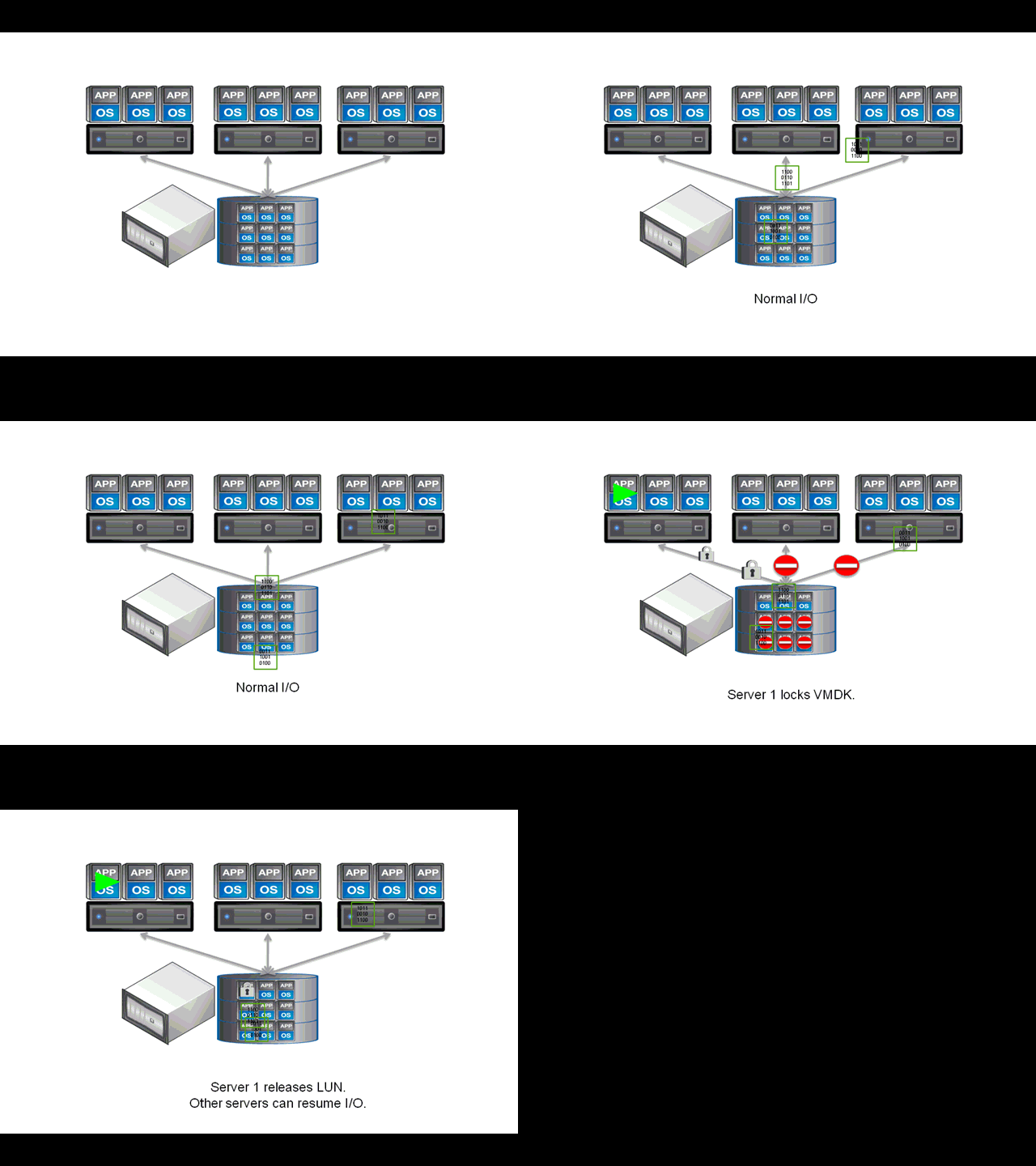
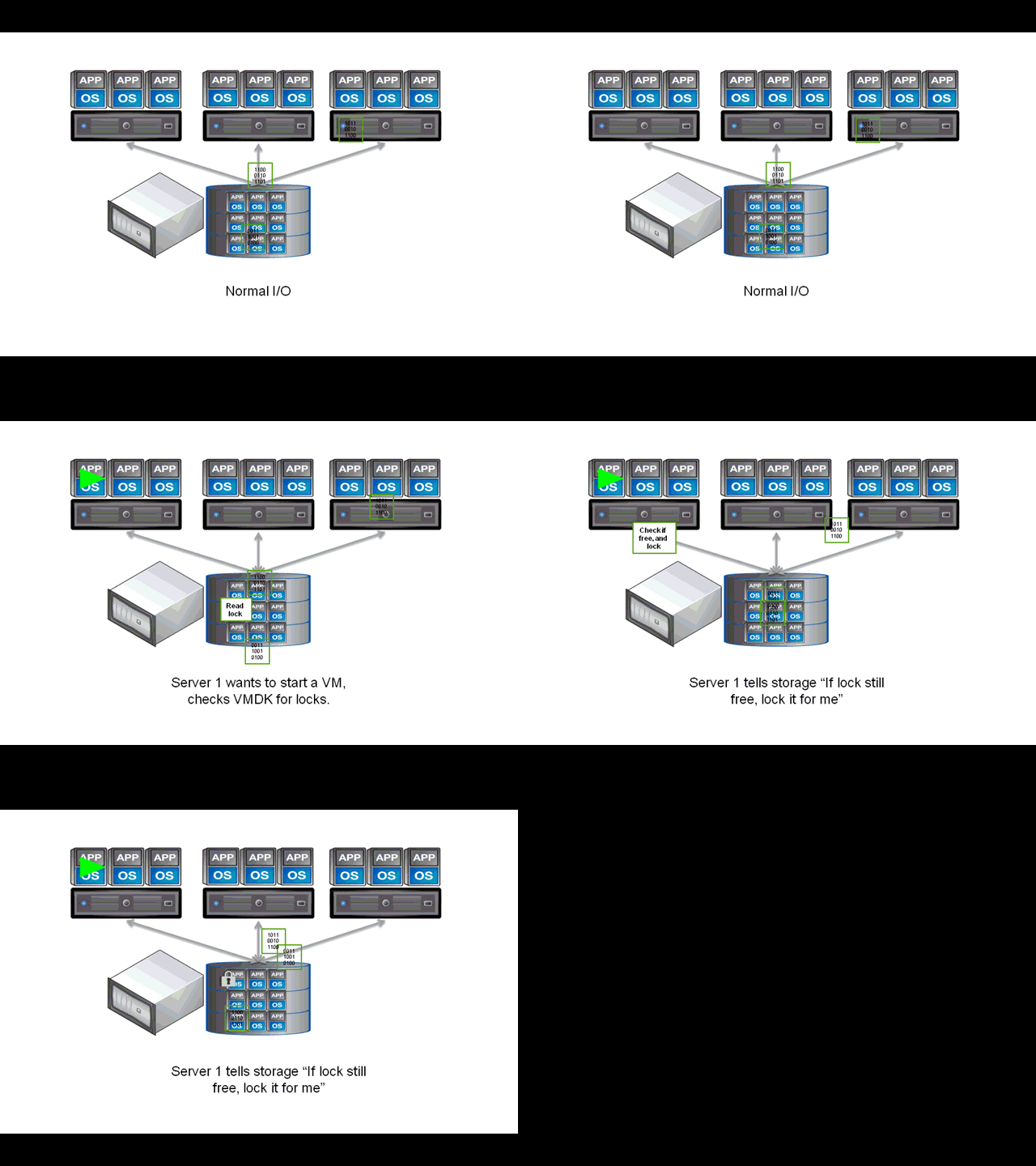
vStorage APIs for Array Integration is a feature introduced in ESXi/ESX 4.1 that provides hardware acceleration functionality. It enables your host to offload specific virtual machine and storage management operations to compliant storage hardware. With the storage hardware assistance, your host performs these operations faster and consumes less CPU, memory, and storage fabric bandwidth.
For more detailed information about vStorage APIs for Array Integration and when it is used, see the Storage Hardware Acceleration section of the Configuration Guide for your version of ESXi/ESX.
What does VAAI require?
VAAI requires:
- ESXi/ESX 4.1 or later
- Enterprise or Enterprise Plus licensing for ESXi/ESX hosts
- Storage arrays that support VAAI storage-based hardware acceleration
Notes:
- ESXi/ESX 4.1 does not support hardware acceleration with NAS storage devices.
- Support for NAS storage devices was introduced in ESXi 5.x.
How do I know if my storage array supports VAAI?To determine if your storage array supports VAAI, see the Hardware Compatibility List or consult your storage vendor. To enable the hardware acceleration on the storage array, check with your storage vendor. Some storage arrays require explicit activation of hardware acceleration support.
Notes:
- VMware HCL version 1 specifies VAAI support with the footnote, 'VAAI primitives "Full Copy", "Block Zeroing" and "Hardware Assisted Locking" are supported' and may identify other prerequisites.
- In VMware HCL version 2, there are options under the Features Category and Features fields where arrays can be searched against to verify if they are VAAI-certified.
What are the fundamental operations used by VAAI and what are their corresponding Advanced Settings?VAAI uses these fundamental operations:
- Atomic Test & Set (ATS), which is used during creation and locking of files on the VMFS volume
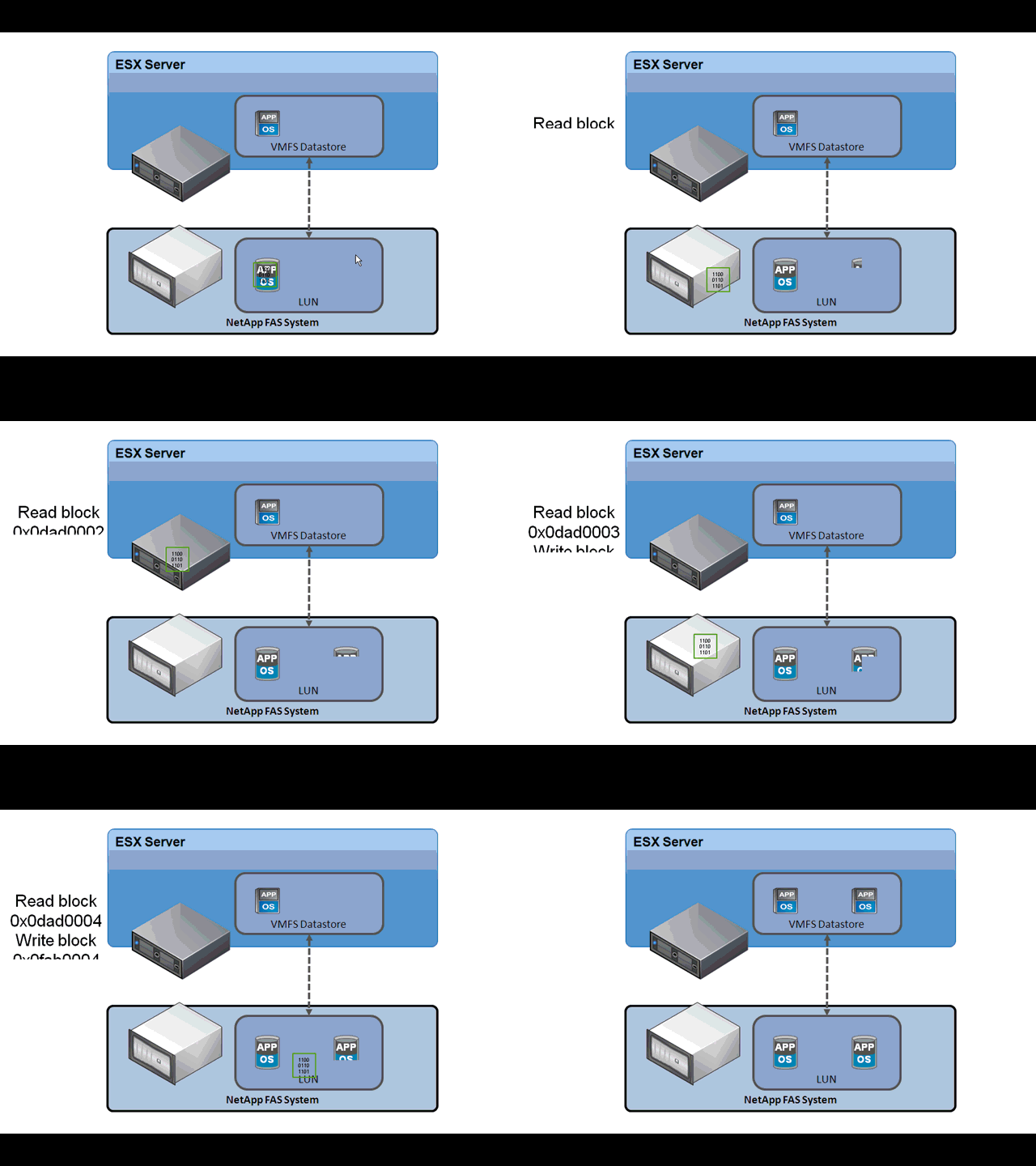
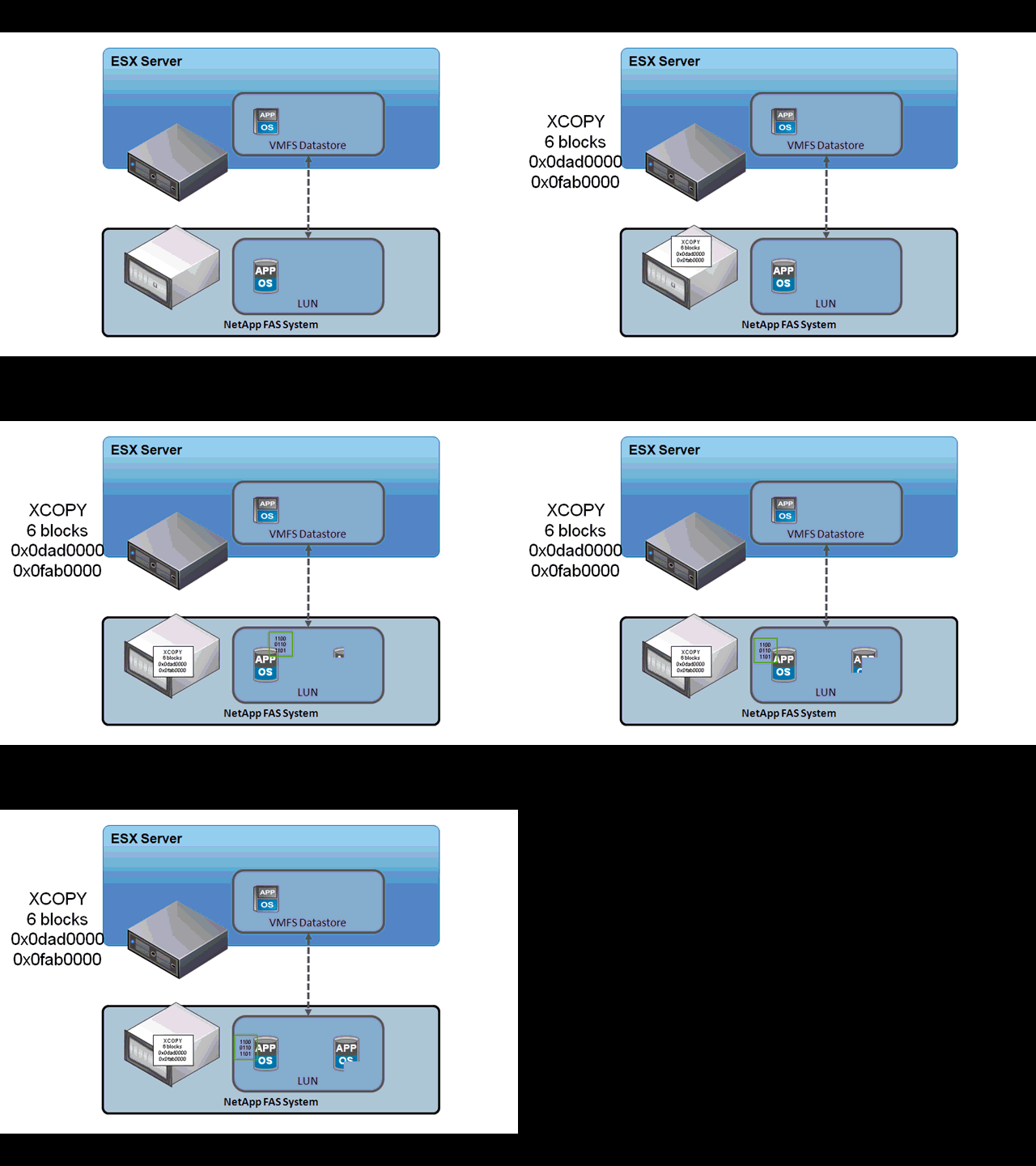
- Clone Blocks/Full Copy/XCOPY, which is used to copy or migrate data within the same physical array
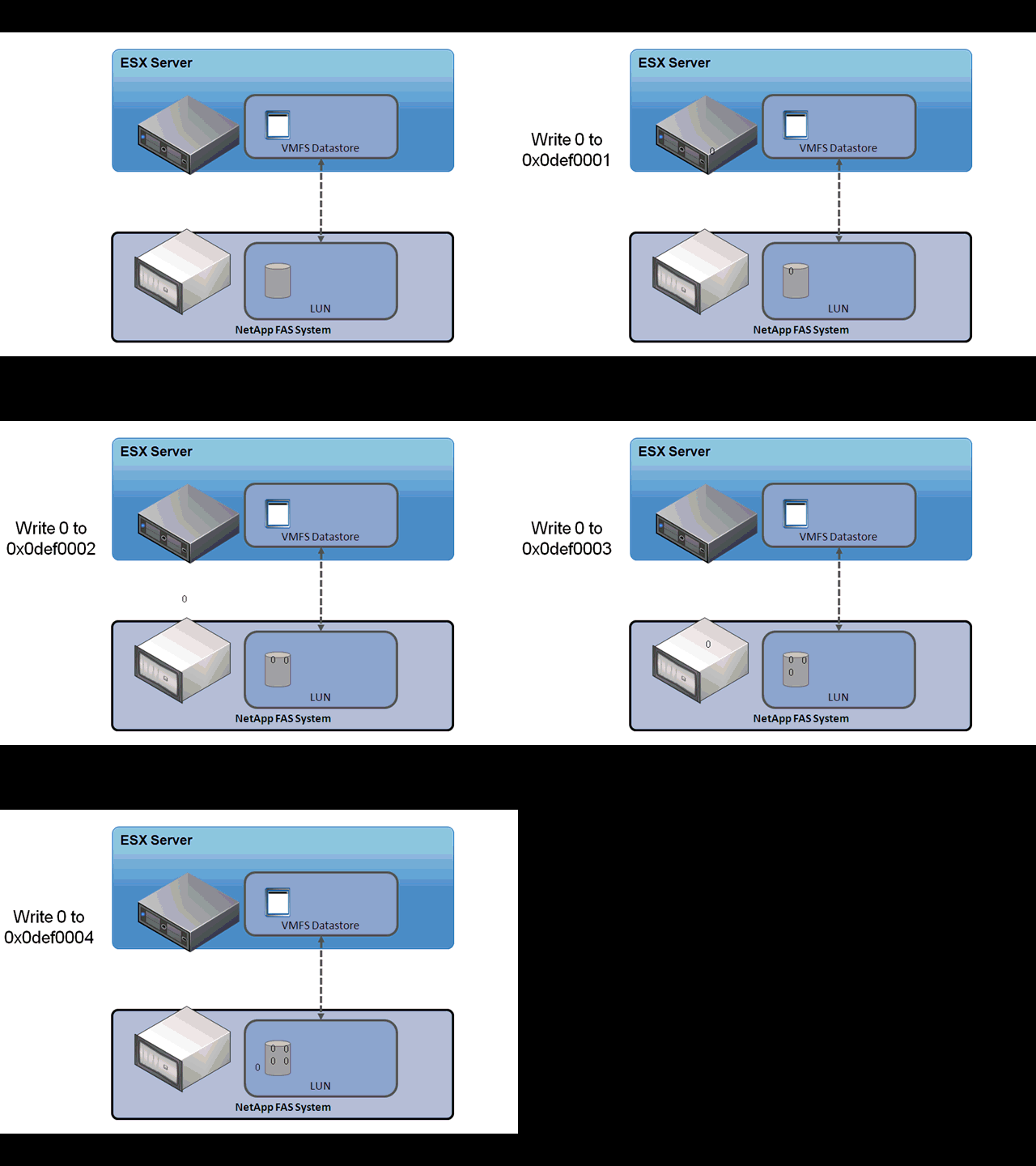
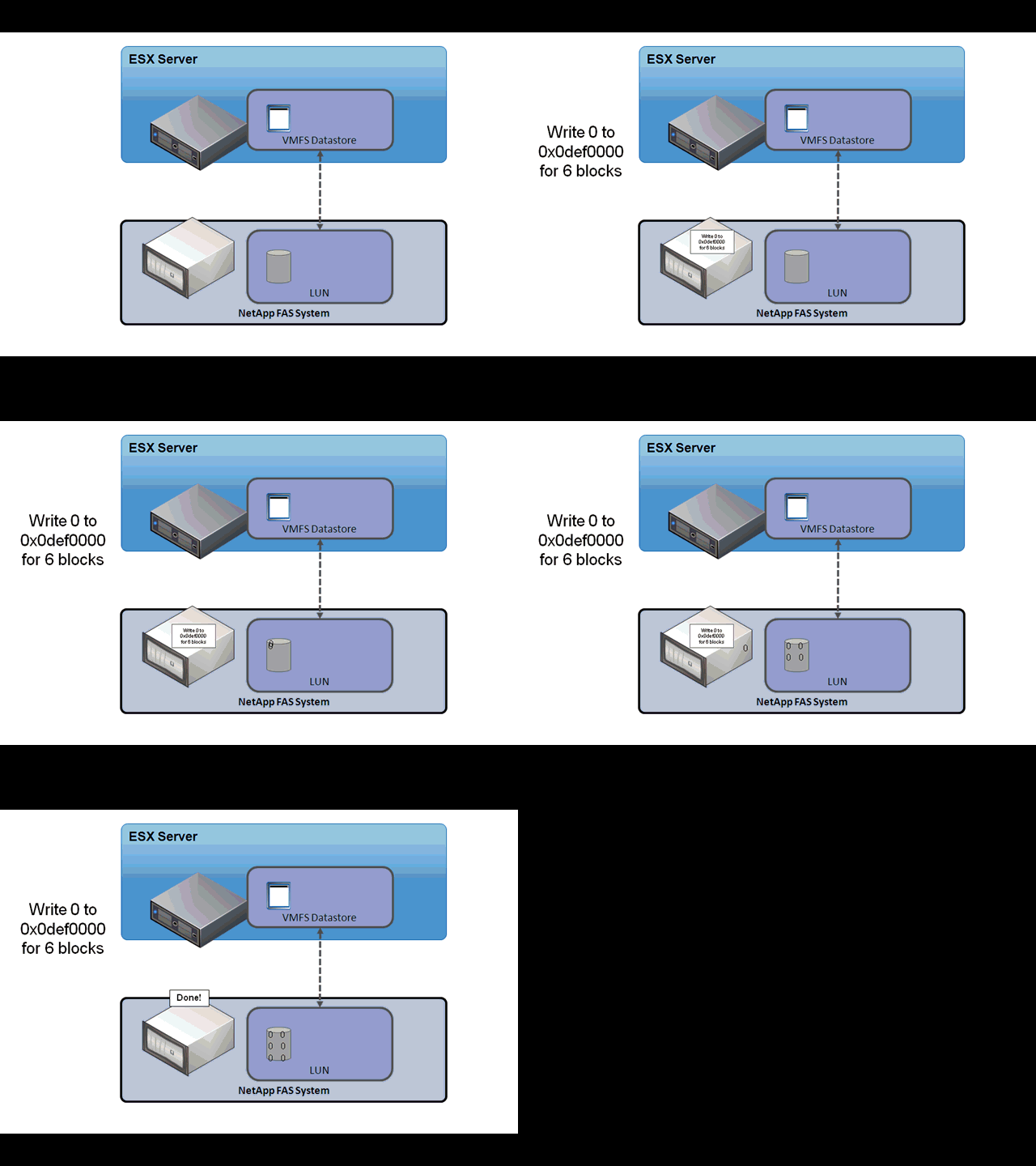
- Zero Blocks/Write Same, which is used to zero-out disk regions
- Thin Provisioning in ESXi 5.x and later hosts, which allows the ESXi host to tell the array when the space previously occupied by a virtual machine (whether it is deleted or migrated to another datastore) can be reclaimed on thin provisioned LUNs.
- Block Delete in ESXi 5.x and later hosts, which allows for space to be reclaimed using the SCSI UNMAP feature. For more information on Block Delete/SCSI UNMAP, see Using vmkfstools to reclaim VMFS deleted blocks on thin-provisioned LUNs (2014849).
The fundamental operations are controlled by these advanced settings:
| Advanced Parameter name | Description |
HardwareAcceleratedLocking | Atomic Test & Set (ATS), which is used during creation of files on the VMFS volume |
HardwareAcceleratedMove | Clone Blocks/Full Copy/XCOPY, which is used to copy data |
HardwareAcceleratedInit | Zero Blocks/Write Same, which is used to zero-out disk regions |
Note: For Thin Provisioning, enabling/disabling occurs on the array and not on the ESXi host.
What improvements have been made to VAAI for ESXi 5.x?To encourage customers to use larger and fewer datastores, support for Thin Provisioning VAAI primitive has been added in ESXi 5.0.
In ESXi 5.x, support for NAS Hardware Acceleration is included with support for these primitives:
- Full File Clone – Like the Full Copy VAAI primitive provided for block arrays, this Full File Clone primitive enables virtual disks to be cloned by the NAS device.
- Native Snapshot Support – Allows creation of virtual machine snapshots to be offloaded to the array.
- Extended Statistics – Enables visibility to space usage on NAS datastores and is useful for Thin Provisioning.
- Reserve Space – Enables creation of thick virtual disk files on NAS.
Note: Previously, the only supported VMDK type that could be created on NAS was thin.
Support for Block Delete to reclaim space use on thin provisioned LUNs on support arrays is also included in ESXi 5.x. For more information on Block Delete/SCSI UNMAP, see
Using vmkfstools to reclaim VMFS deleted blocks on thin-provisioned LUNs (2014849).
How do I know if VAAI is enabled?To determine if VAAI is enabled using the vSphere Client:
- In the vSphere Client inventory panel, click the host.
- Click the Configuration tab, then click Advanced Settings under Software.
- Check that these options are set to 1 (enabled):
DataMover.HardwareAcceleratedMove
DataMover.HardwareAcceleratedInit
VMFS3.HardwareAcceleratedLocking
Note: These options are enabled by default.
On ESXi/ESX 4.x hosts, to determine if VAAI is enabled using the service console in ESX or the vCLI in ESXi, use the
esxcfg-advcfgcommand to check if the options are set to 1 (enabled):
# esxcfg-advcfg -g /DataMover/HardwareAcceleratedMove
# esxcfg-advcfg -g /DataMover/HardwareAcceleratedInit
# esxcfg-advcfg -g /VMFS3/HardwareAcceleratedLocking
On ESXi 5.x hosts, to determine if VAAI is enabled, run these commands and check if
Int Value is set to 1 (enabled):
# esxcli system settings advanced list -o /DataMover/HardwareAcceleratedMove
# esxcli system settings advanced list -o /DataMover/HardwareAcceleratedInit
# esxcli system settings advanced list -o /VMFS3/HardwareAcceleratedLocking
You see output similar to:
   Path: /VMFS3/HardwareAcceleratedLocking
   Type: integer
   Int Value: 1           <-- set to 1 if enabled
   Default Int Value: 1
   Min Value: 0
   Max Value: 1
   String Value:
   Default String Value:
   Valid Characters:
Description: Enable hardware accelerated VMFS locking (requires compliant hardware)Note: For Thin Provisioning, enabling/disabling occurs on the array and not on the ESXi host.
What happens if I have VAAI enabled on the host but some of my disk arrays do not support it?When storage devices do not support or provide only partial support for the host operations, the host reverts to its native methods to perform the unsupported operations.
Are there any caveats that I should be aware of in ESXi 5.x?Use of the ATS (Atomic Test-and-Set) primitive depends on the type of filesystem:
| On VAAI Hardware | New VMFS-5 | Upgraded VMFS-5 | VMFS-3 |
| Single-extent datastore | ATS only [1] | ATS, but fall back to SCSI-2 reservations | ATS, but fall back to SCSI-2 reservations |
| Multi-extent datastore | Only allow spanning on ATS hardware [2] | ATS, except when locks on non-head | ATS, except when locks on non-head |
Notes:
- [1] If a new VMFS-5 is created on a non-ATS storage device, SCSI-2 reservations will be used.
- [2] When creating a multi-extent datastore where ATS is used, the vCenter Server will filter out non-ATS devices, so that only devices that support the ATS primitive can be used.
Are there any caveats that I should be aware of in ESXi/ESX 4.x?There are a few reasons why a hardware-accelerated operation may fail.
For any primitive that the array does not implement, the array returns an error, which triggers the ESX data mover to attempt the operation using software data movement. In the case of ATS, it reverts to using SCSI Reservations.
VAAI hardware offload cannot be used when:
- The source and destination VMFS volumes have different block sizes
- The source file type is RDM and the destination file type is non-RDM (regular file)
- The source VMDK type is eagerzeroedthick and the destination VMDK type is thin
- The source or destination VMDK is any kind of sparse or hosted format
- Cloning a virtual machine that has snapshots because this process involves consolidating the snapshots into the virtual disks of the target virtual machine.
- The logical address and/or transfer length in the requested operation is not aligned to the minimum alignment required by the storage device (all datastores created with the vSphere Client are aligned automatically)
- The VMFS datastore has multiple LUNs/extents spread across different arrays
Note:
What do I need to know about the Hardware Acceleration Support Status?If you go to
Host >
Configuration >
Storage, you can see the Hardware Acceleration Status in the panel on the right side.
For each storage device and datastore, the vSphere Client displays the hardware acceleration support status in the Hardware Acceleration column of the Devices view and the Datastores view.
The status values are
Unknown,
Supported, and
Not Supported. The initial value is Unknown. The status changes to Supported after the host successfully performs the offload basic operations. If the offload operation fails, the status changes to Not Supported.
To determine if your storage device supports VAAI, test the
Full Copy VAAI primitive:
- Using the vSphere Client, browse the datastore and locate a virtual disk (VMDK) of at least 4 MB that is not in use.
- Copy the virtual disk to a new file.
- Check the Hardware Acceleration status to verify that it changes from Unknown to either Supported or Not Supported.
Note: VAAI primitives can also be tested by creating a virtual machine with at least one new virtual disk, or cloning a virtual machine.
Can I check the VAAI status from the command line?
- On ESXi 5.x
To check the VAAI status, run the command:
# esxcli storage core device vaai status get
You see output similar to:
mpx.vmhba1:C0:T1:L0
   VAAI Plugin Name:
   ATS Status: unsupported
   Clone Status: unsupported
   Zero Status: unsupported
   Delete Status: unsupported

mpx.vmhba1:C0:T0:L0
   VAAI Plugin Name:
   ATS Status: unsupported
   Clone Status: unsupported
   Zero Status: unsupported
   Delete Status: unsupported
- On ESXi/ESX 4.x
To check the VAAI status, run the command:
# esxcfg-scsidevs -l | egrep "Display Name:|VAAI Status:"
You see output similar to:
Display Name: Local VMware Disk (mpx.vmhba2:C0:T0:L0)
VAAI Status: unsupported
Display Name: Local USB CD-ROM (mpx.vmhba32:C0:T0:L0)
VAAI Status: unknown
Display Name: Local TEAC CD-ROM (mpx.vmhba3:C0:T0:L0)
VAAI Status: unknown
Display Name: DGC Fibre Channel Disk (naa.6006016030801c00f8506073d0d7de11)
VAAI Status: unknown
Display Name: DGC Fibre Channel Disk (naa.6006016030801c00f9506073d0d7de11)
VAAI Status: unknown
Are changes to VAAI settings logged?Changes to VAAI advanced settings (for example, enabling or disabling VAAI) are recorded in the VMkernel logs at
/var/log/vmkernel (for ESXi 5.0
vmkernel.log) or
/var/log/messages.
After enabling VAAI using the advanced settings, the VMkernel log contains entries similar to:
cpuN:1234)Config: 297: "HardwareAcceleratedMove" = 1, Old Value: 0, (Status: 0x0)
cpuN:1234)Config: 297: "HardwareAcceleratedInit" = 1, Old Value: 0, (Status: 0x0)
cpuN:1234)Config: 297: "HardwareAcceleratedLocking" = 1, Old Value: 0, (Status: 0x0)
After disabling VAAI using the advanced settings, the VMkernel log contains entries similar to:
cpuN:1234)Config: 297: "HardwareAcceleratedMove" = 0, Old Value: 1, (Status: 0x0)
cpuN:1234)Config: 297: "HardwareAcceleratedInit" = 0, Old Value: 1, (Status: 0x0)
cpuN:1234)Config: 297: "HardwareAcceleratedLocking" = 0, Old Value: 1, (Status: 0x0)